
Transactions - Dashboard Actions
Know actions you can perform in the transactions tab.
An admin and support maker can perform the following actions on each Transaction:
↩️ Refund Charges
You can partially or fully refund any charges on an account.
Watch Out
You cannot refund UPI transactions.
To refund charges:
-
Log in to the issuer dashboard using the role-based credentials.
-
If a user is:
- An admin maker: Click the customer to pay the bill.
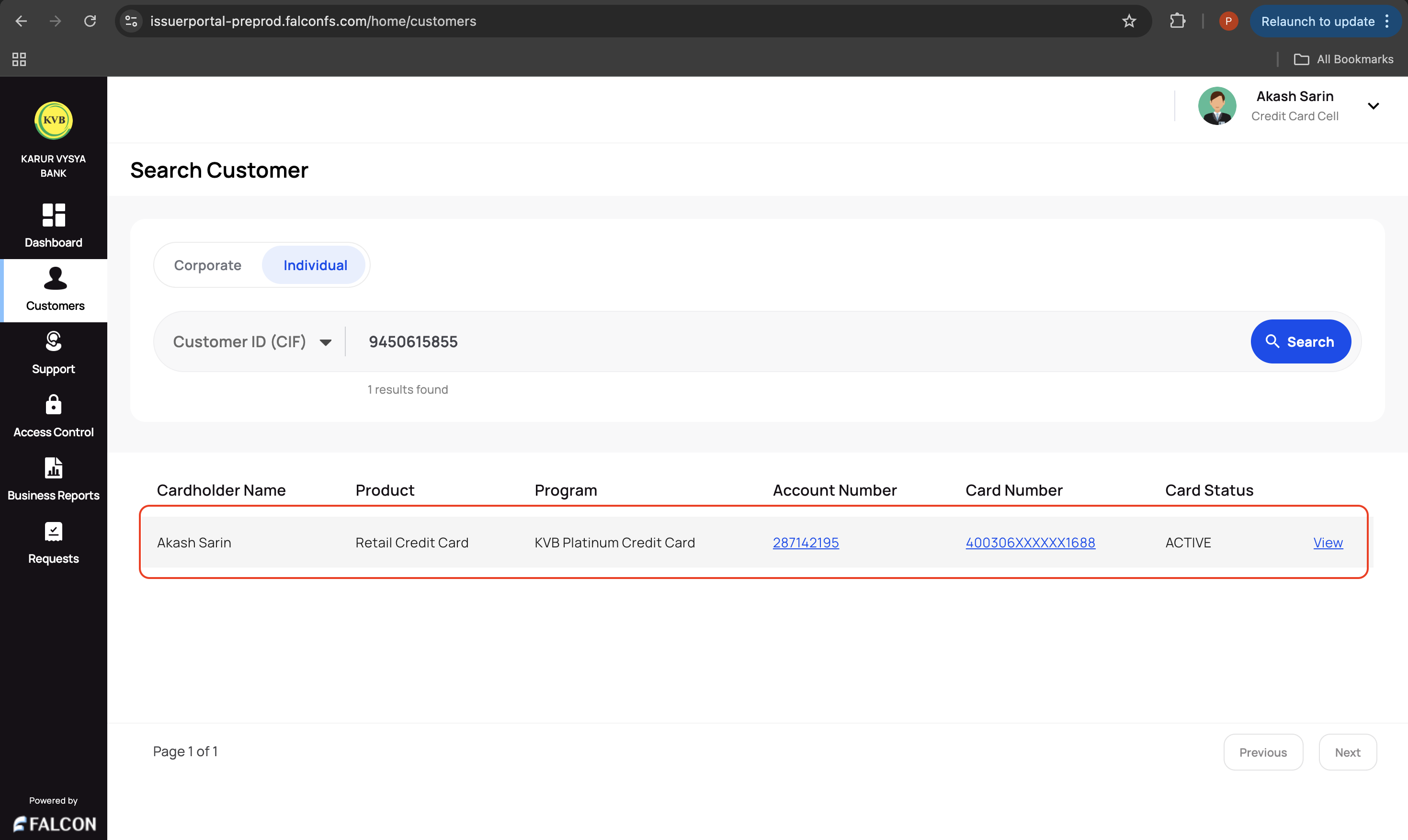
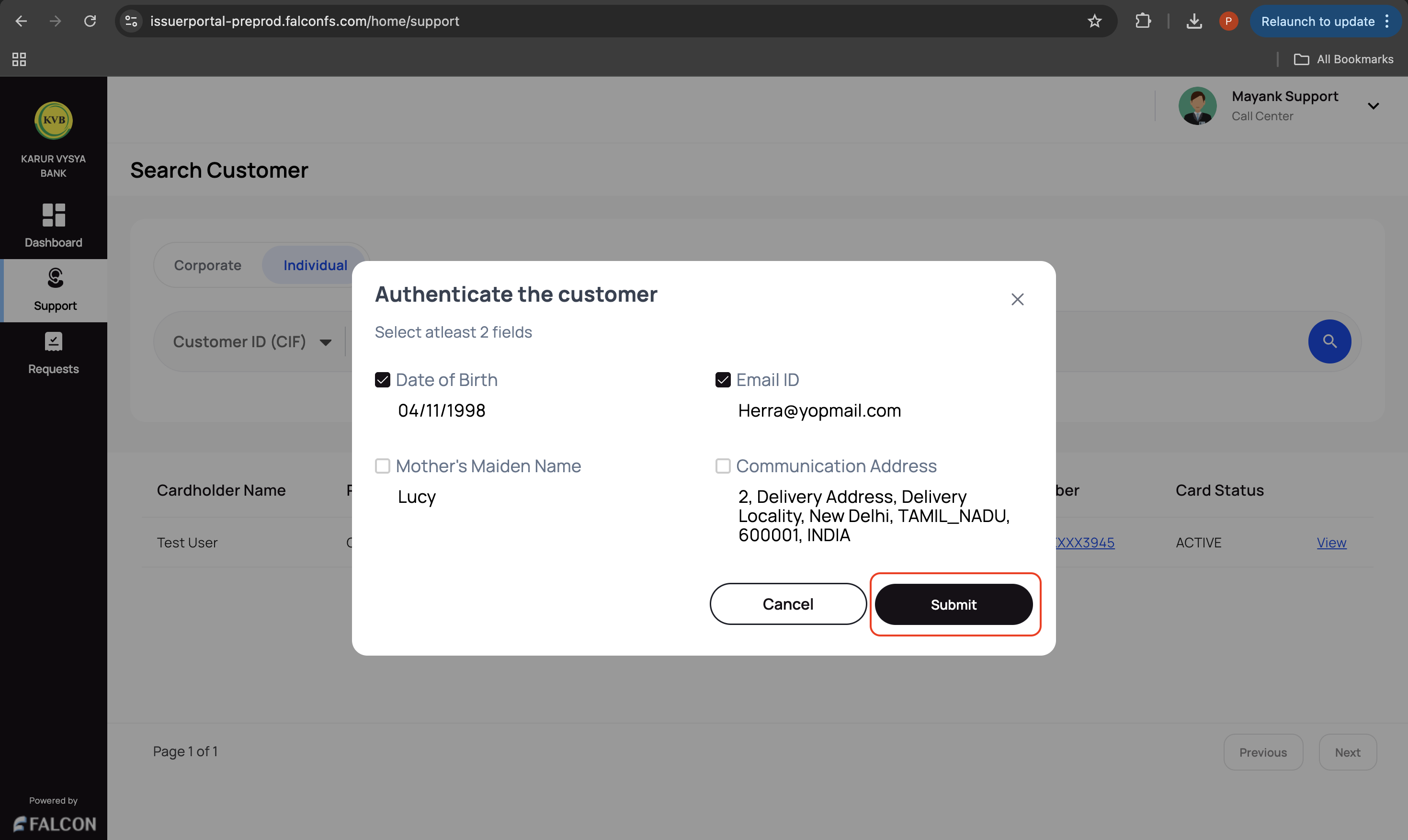
- A support maker: Click the customer, select any two customer details to authenticate, and click Submit.
-
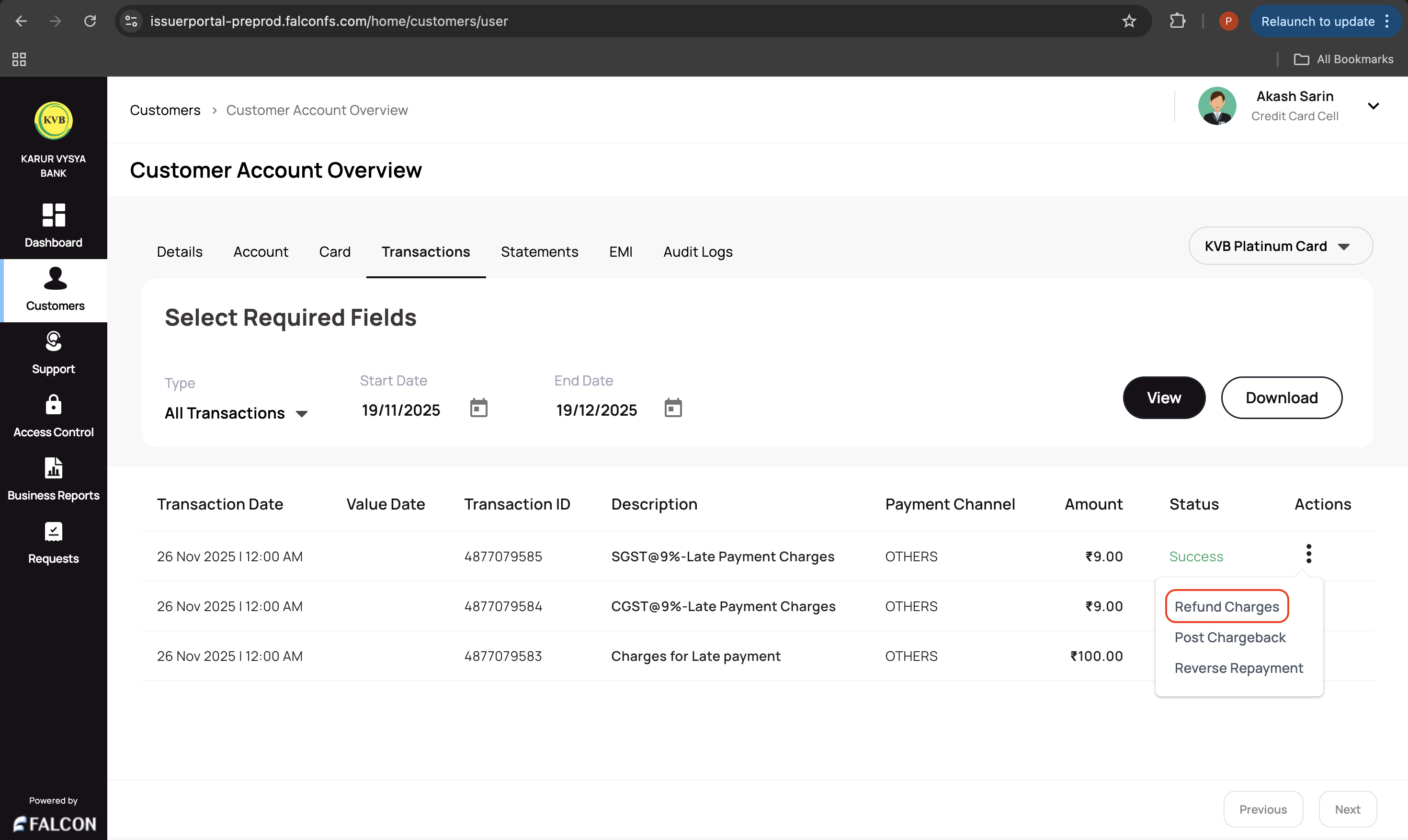
Go to the Transaction tab, click the three dots against the transaction, and click Refund Charges.
- Provide the following details and click Confirm in the Confirm Refund pop-up page.
- Enter Refund Amount
- Comments. This is mandatory.
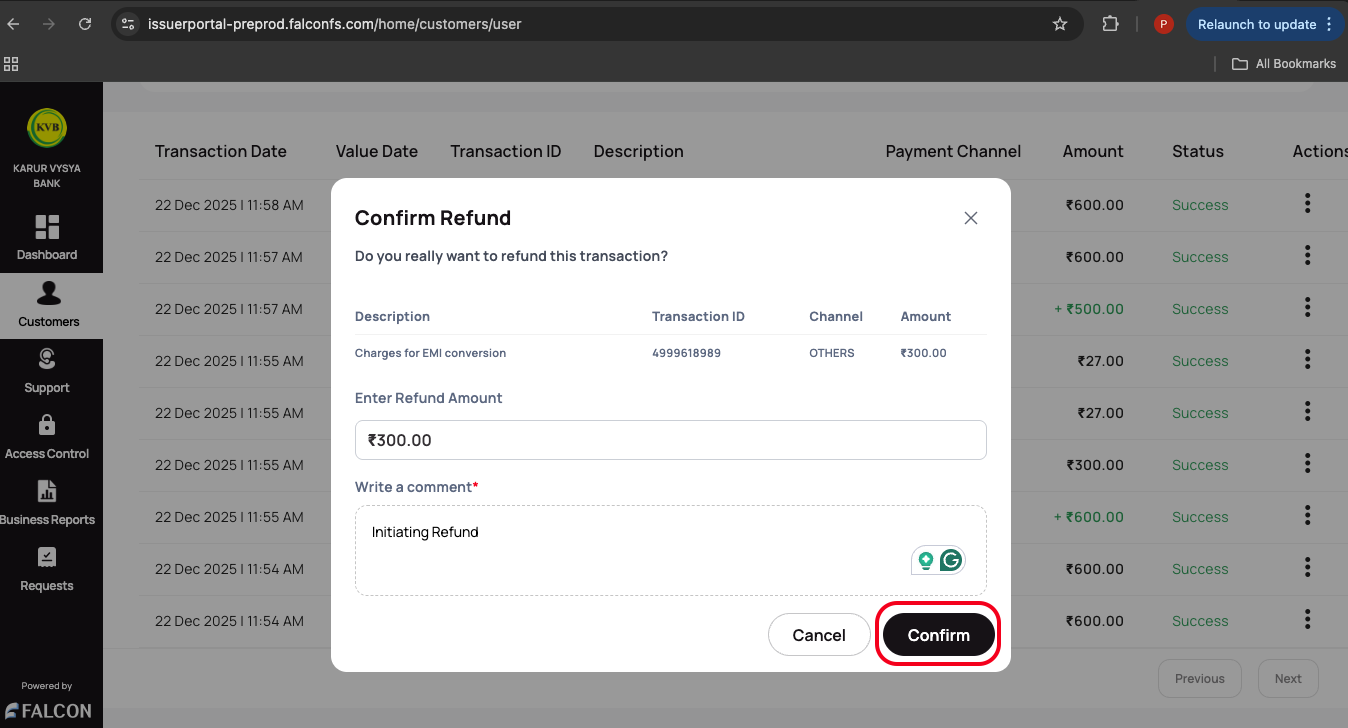
You have successfully raised the refund request. You can check the status of the request in the Requests page.
⚠️ Post Chargeback
After a dispute raised by a customer is resolved in their favour, the bank can post the chargeback credits against the purchase transaction.
To post a chargeback:
-
Log in to the issuer dashboard using the role-based credentials.
-
If a user is:
- An admin maker: Click the customer to pay the bill.
- A support maker: Click the customer, select any two customer details to authenticate, and click Submit.
-
Go to the Transaction tab, click the three dots against the transaction, and click Post Chargeback.
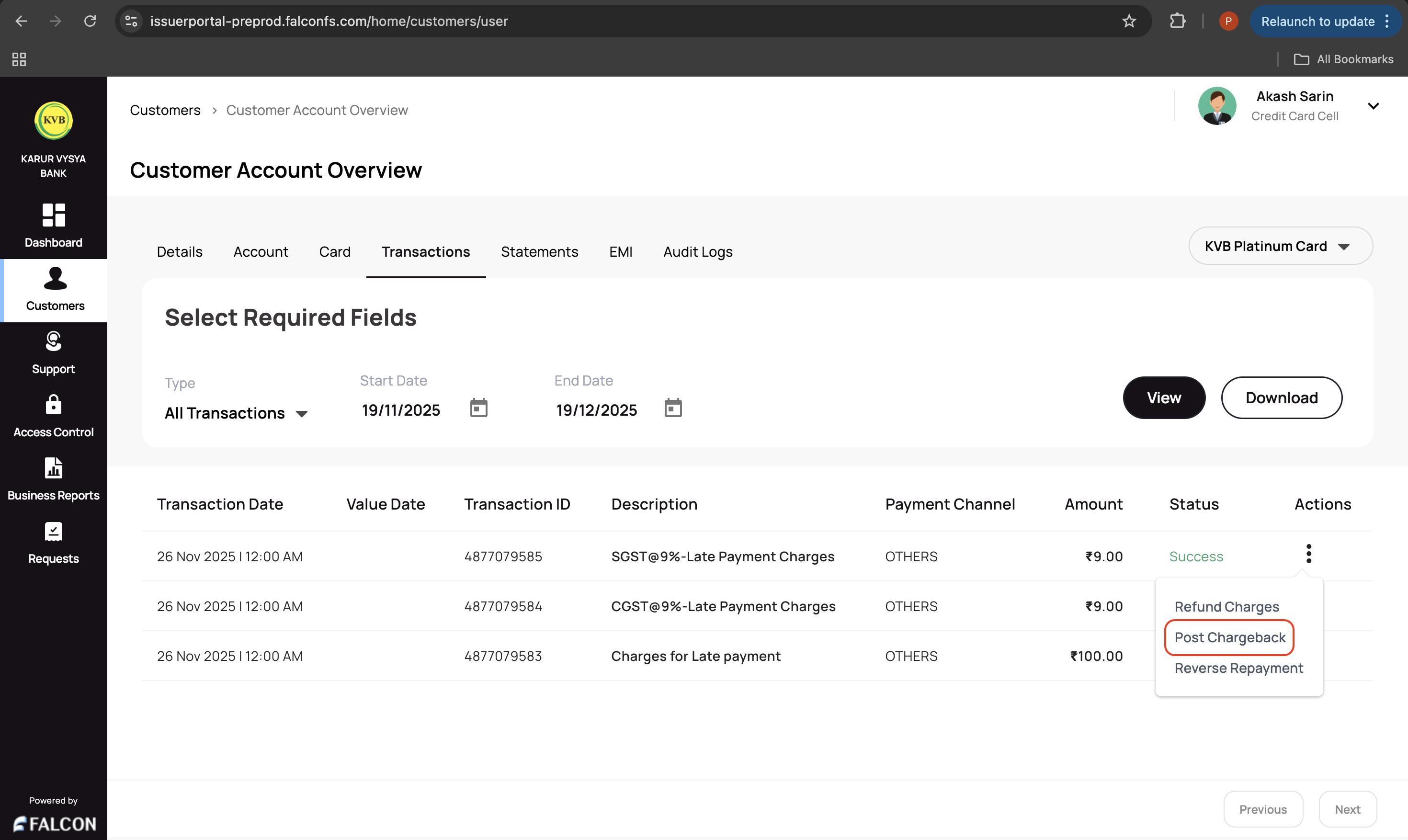
- Provide the following details and click Confirm in the Post Chargeback pop-up page to submit your request.
- Enter Chargeback Amount
- Enter Reference Number
- Write a comment
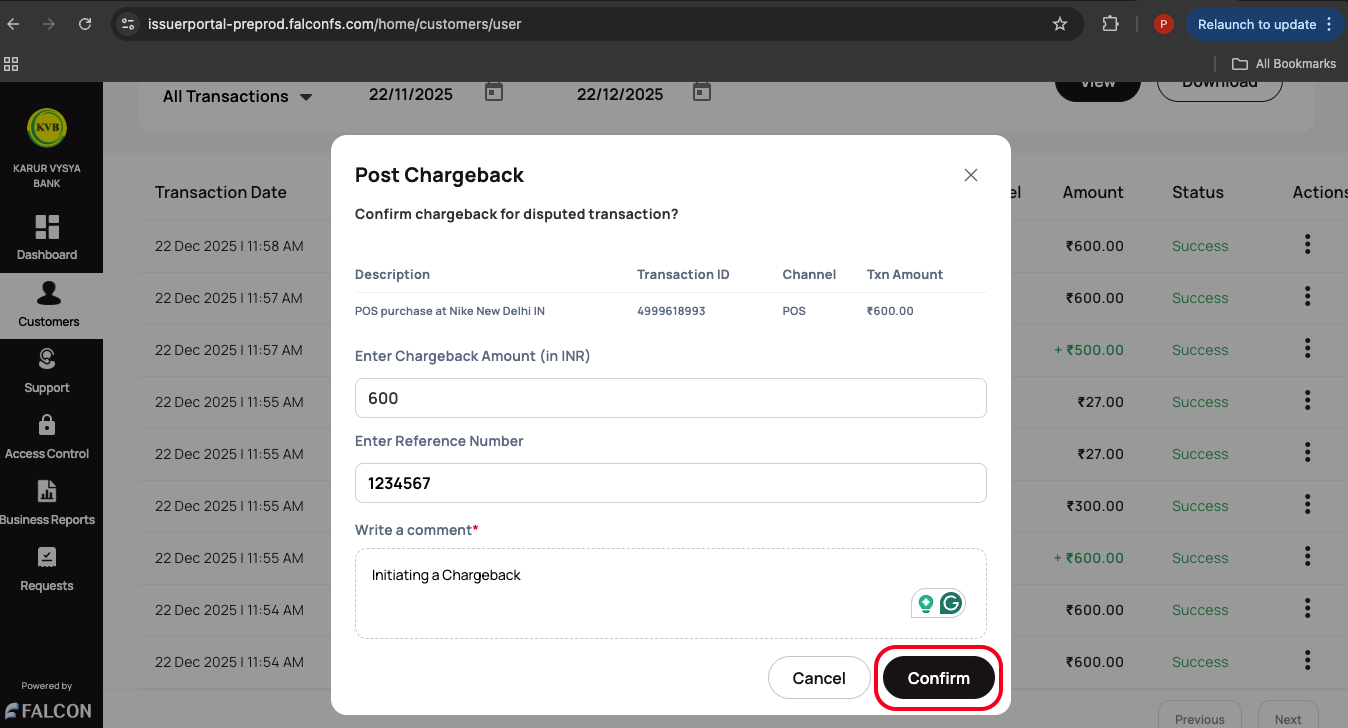
You have successfully raised the chargeback request. You can check the status of the request in the Requests page.
🔄 Reverse a Repayment
You can partially or fully reverse a customer's repayment transaction.
Watch Out
You cannot reverse a UPI transaction.
To reverse a repayment:
-
Log in to the issuer dashboard using the role-based credentials.
-
If a user is:
- An admin maker: Click the customer to pay the bill.
- A support maker: Click the customer, select any two customer details to authenticate, and click Submit.
-
Go to the Transaction tab, click the three dots against the transaction and click Reverse Repayment.
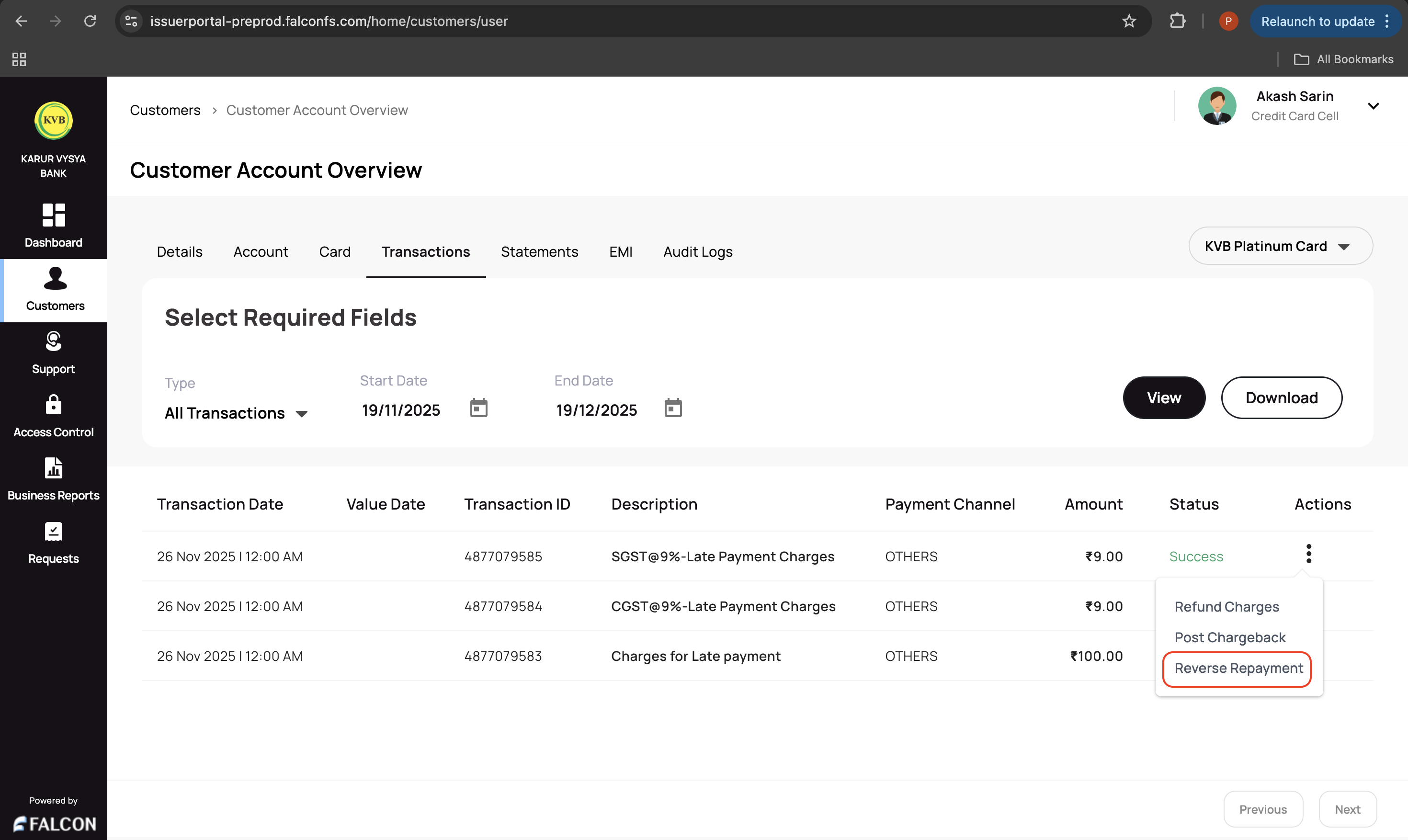
- Provide the following information in the Confirm Reversal pop-up page and click Confirm.
- Reference ID
- Enter Amount
- Write a comment: Provide a comment. This is a mandatory field.
You have successfully raised the reversal request. You can check the status of the request in the Requests page.
⬇️ Download Transactions
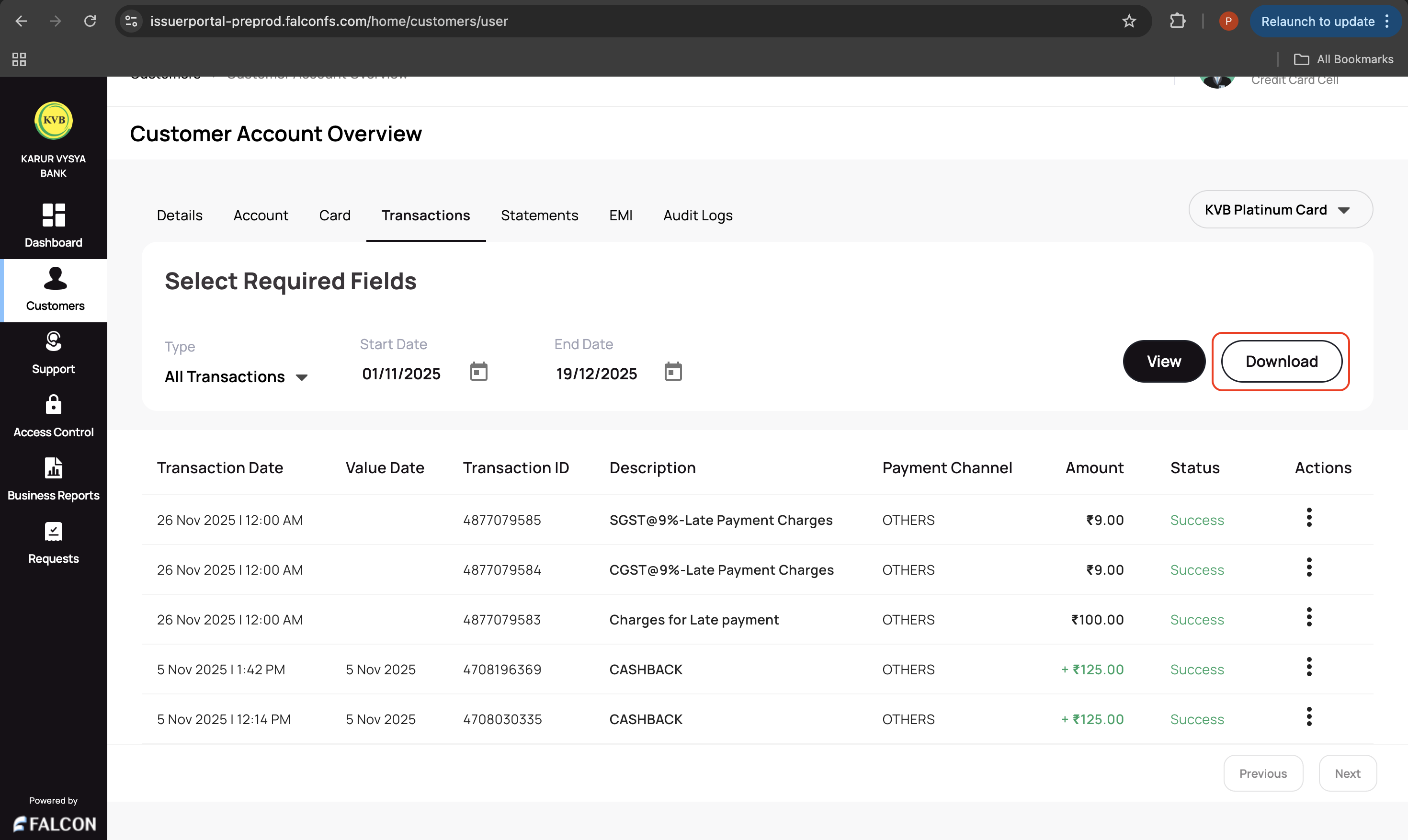
You can view or download transactions depending on the start date and end date.
To download transactions:
-
Log in to the issuer dashboard using the role-based credentials.
-
If a user is:
- An admin maker: Click the customer to pay the bill.
- A support maker: Click the customer, select any two customer details to authenticate, and click Submit.
-
Go to the Transaction tab, select the start and end dates to view the transactions.
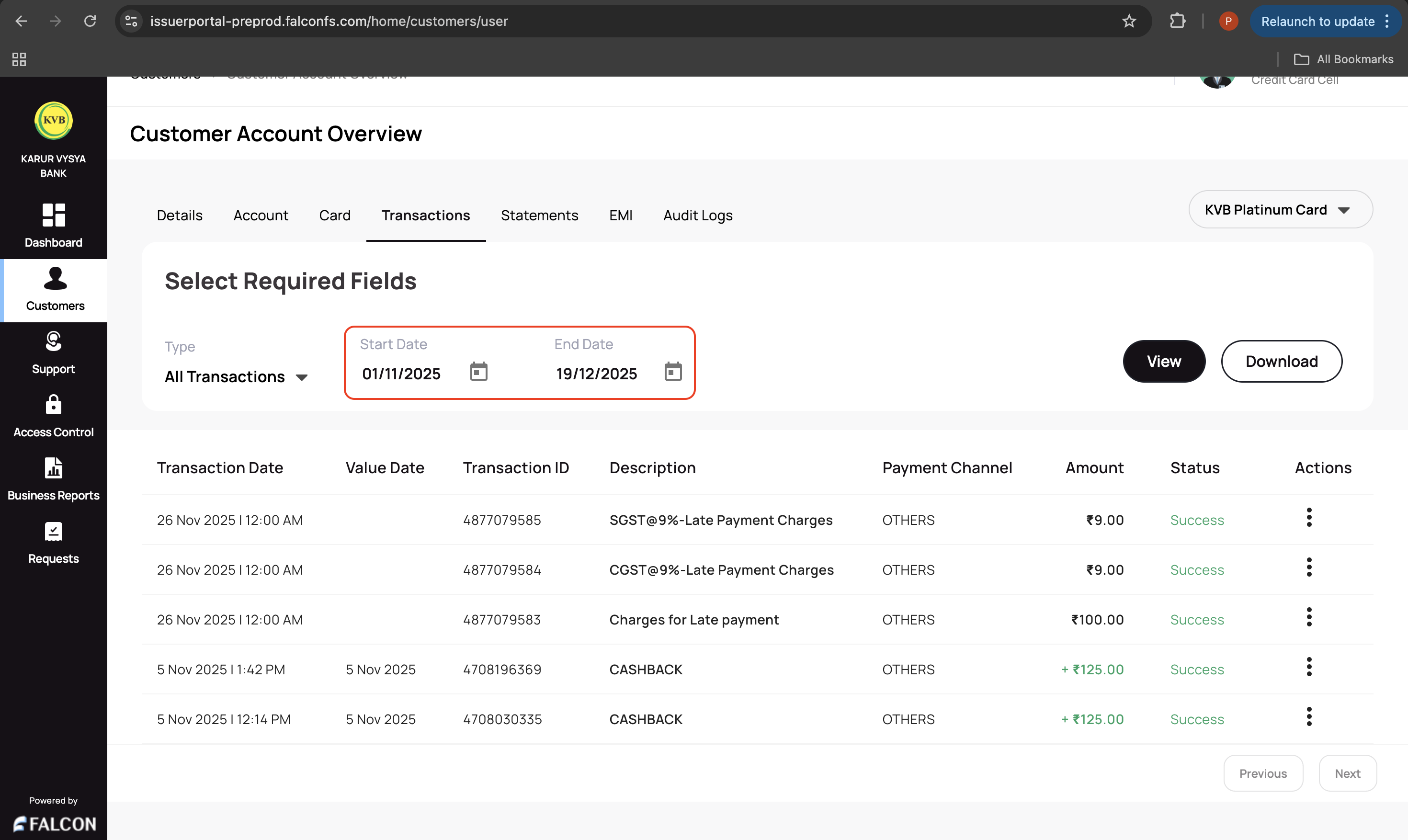
- Click Download to download the list of transactions.
Updated 9 months ago
Related Information
Refer to the following pages for any additional information.