For AI agents: visit https://docs.falconfs.com/llms.txt for an index of all pages formatted in Markdown and endpoints in OpenAPI. Append .md to any documentation page URL to get its markdown version.
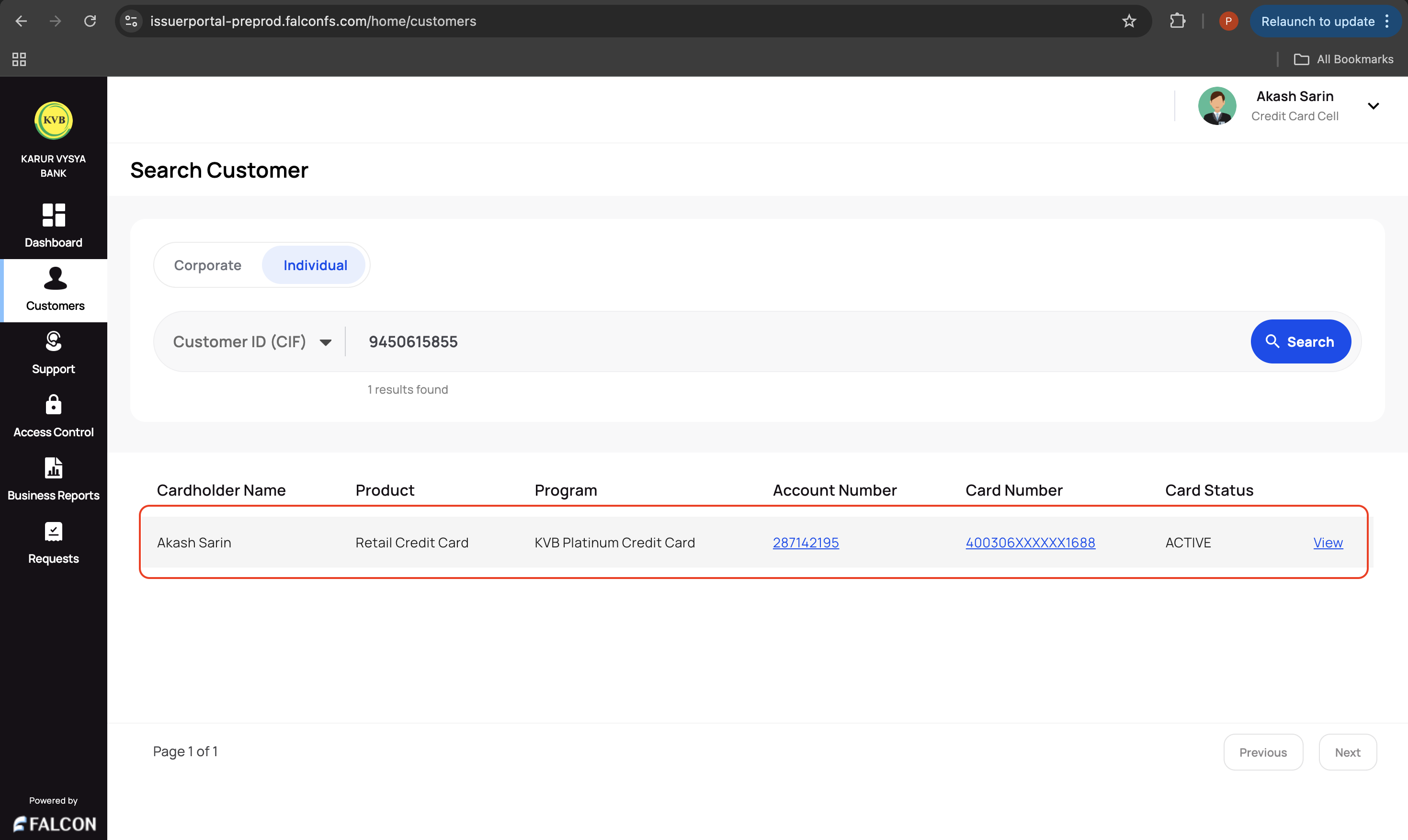
This page displays a list of retail and corporate customers in the respective tabs and their following information.
Cardholder Name
Product
Program
Account Number
Card Number (masked)
Card Status
❗️
Watch Out
Only users with admin makers and checker roles can see this page.
📊 Customer Account Overview
Admin and support makers can click the required customer displayed on the home page to access the Customer Account Overview page.
📘
User Authentication
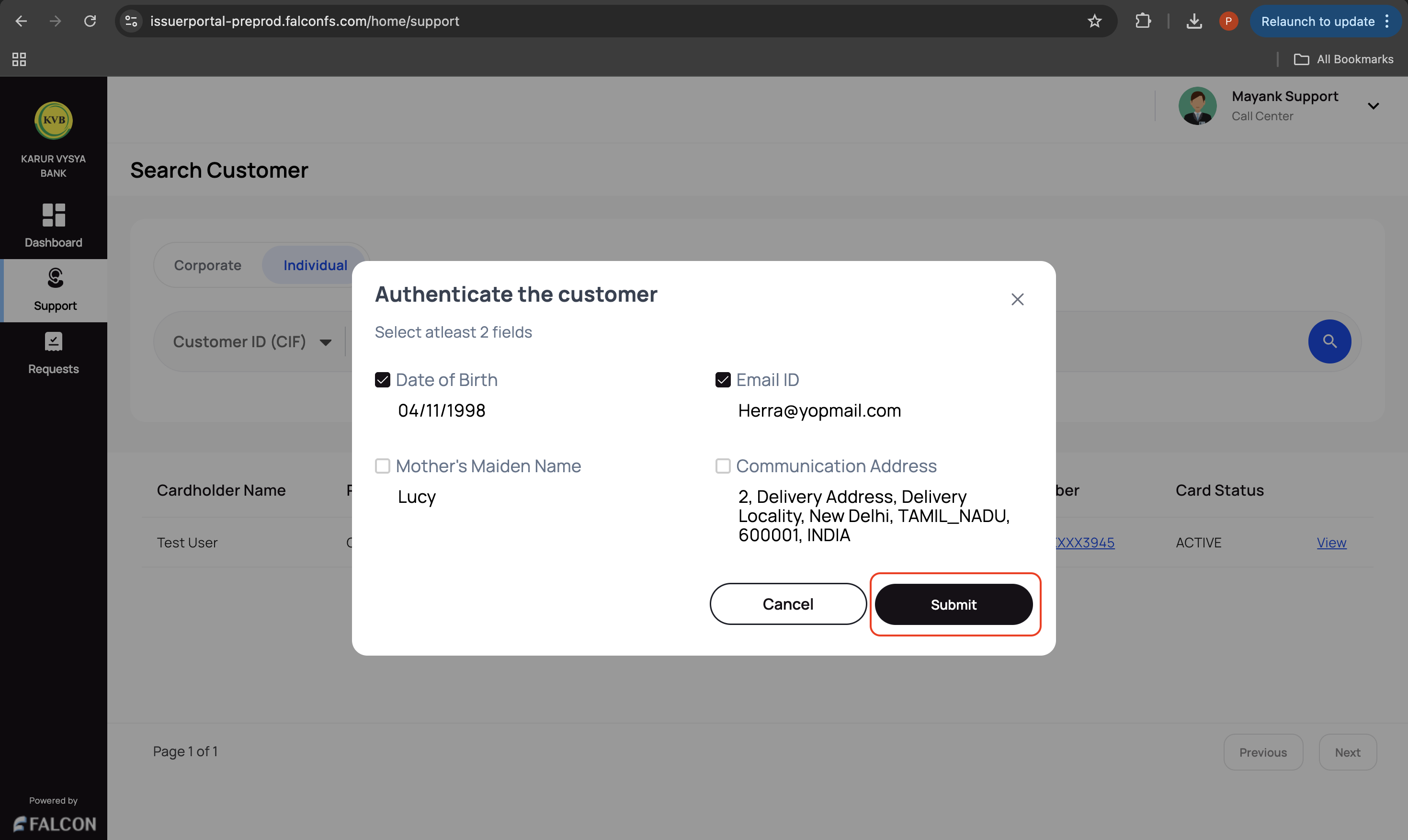
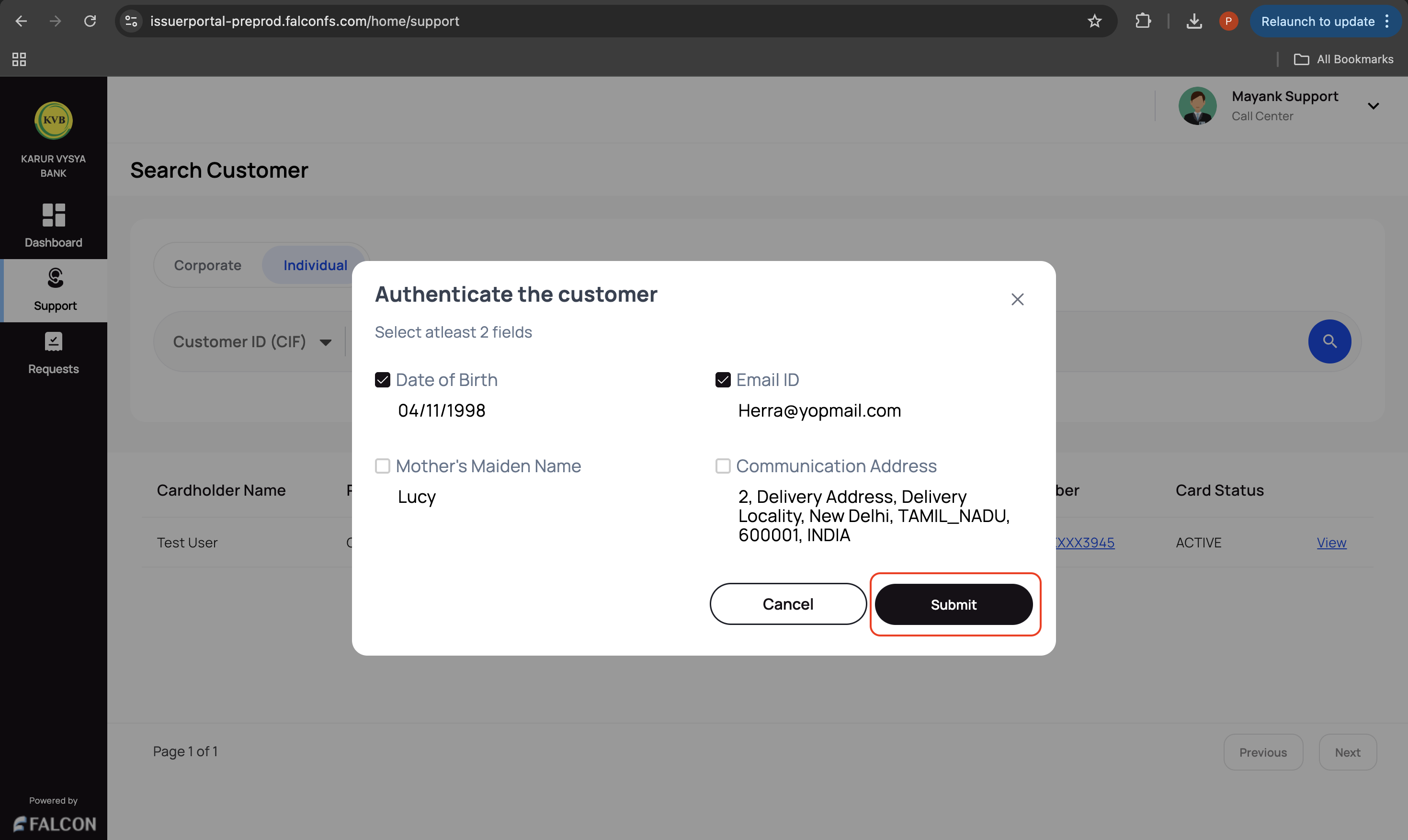
Users with support makers and checkers roles should authenticate any two of the following customer details before accessing their information.
Date of Birth
Email ID
Mother's Maiden Name
Communication Address
To authenticate, select any two check boxes and click Submit in the Authenticate the customer pop-up page.
Authenticate customers
The Customer Account Overview page is divided into the following tabs depending on whether a user is retail or corporate.
ℹ️ Details
This tab displays the following sections and their information depending on the type of user:
Basic Information: This section contains the following information.
Name
Mobile Number
Date of Birth
Gender
Mother's Name
Permanent Address
Communication Address
Staff User
Corporate Details (Only for corporate users): This section contains the following corporate information:
Corporate Id
Corporate Name
Corporate Address
Subscriptions: This section displays a list of cardholders' (both retail and corporate) credit card subscriptions, their benefits, and features
🏦 Account
This tab displays the following sections and their information:
Account Overview: This section contains the following information.
Available Limit: The amount of credit a customer can still use. For example, if the total credit limit is ₹1,00,000 and a customer has spent ₹40,000, the available limit is ₹60,000.
Available Cash Limit: The amount of cash a customer can withdraw using the credit card. For example, if the total cash limit is ₹40,000 and a customer has withdrawn ₹20,000, the available limit is ₹20,000.
Minimum Amount Due (MAD): The minimum payment a customer should make by the due date (+ grace days) to keep the account active and avoid late fees. For example, for a total bill of ₹20,000, the MAD (calculated as 10%) is ₹2,000.
Total Amount Due (TAD): The total billed amount for the statement period, including spends, fees, and previous dues. For example, if a customer spent ₹18,000 this month and had ₹2,000 pending from last month, the TAD is ₹20,000.
Current Outstanding: The total amount currently owed by a customer, including unbilled transactions. For example, after the ₹20,000 bill is generated, a customer makes another transaction of ₹5,000, then the outstanding amount becomes ₹25,000.
Account Details: This section displays the following information.
Account ID ( with the payer VPA): The CC account ID
Product Category: The specific category of the product, for example, Retail Credit Card.
Product: The name of the product. Here it is, KVB Platinum Card.
Total Limit: The total credit card limit sanctioned for a customer. You can edit this limit using the available option.
Maximum Credit Limit: The highest credit limit that can be assigned to a customer as per internal policy or approval tier. You can edit this limit using the available option.
Account Opening Date: The account opening date.
Next Billing Date: The upcoming date on which the customer's next statement will be generated.
Payment Due Date: The last date by which the customer must pay at least the Minimum Amount Due (MAD). You can edit this limit using the available option.
Delinquency Cycle: The number of billing cycles a customer has missed payments for.
Days Past Due: The total number of days since the minimum amount due has not been paid.
Account Status: Indicates whether an account is Active, Inactive, or Closed.
Auto Debit Config: The auto debit details of the customer. You can configure this using the available option.
Auto Debit A/C No: The account number through which the auto debit happens.
Auto Renewal: This determines whether the auto-renewal is enabled or not. You can edit this using the available option.
CIF Number: The customer CIF number.
Branch Code: The branch code.
Account Closure Date: The account closure date, if applicable.
NPA Details: This section displays the following information.
Bank Induced NPA Status: This indicates whether the bank has induced NPA.
Bank Induced NPA Date: The bank-induced NPA date, if applicable.
CMS Induced NPA Status: This indicates whether the CMS has induced NPA.
CMS Induced NPA Date: The CMS-induced NPA date, if applicable.
Nominee Details: This section contains the following information.
Nominee Name
Nominee Relationship
Associated Payment Instruments: This section contains the following information.
Card Number: The associated master card numbers.
Card Holder Name: The name of the cardholder.
Status: The card status
Transactions: This contains an option to view transactions of this particular card.
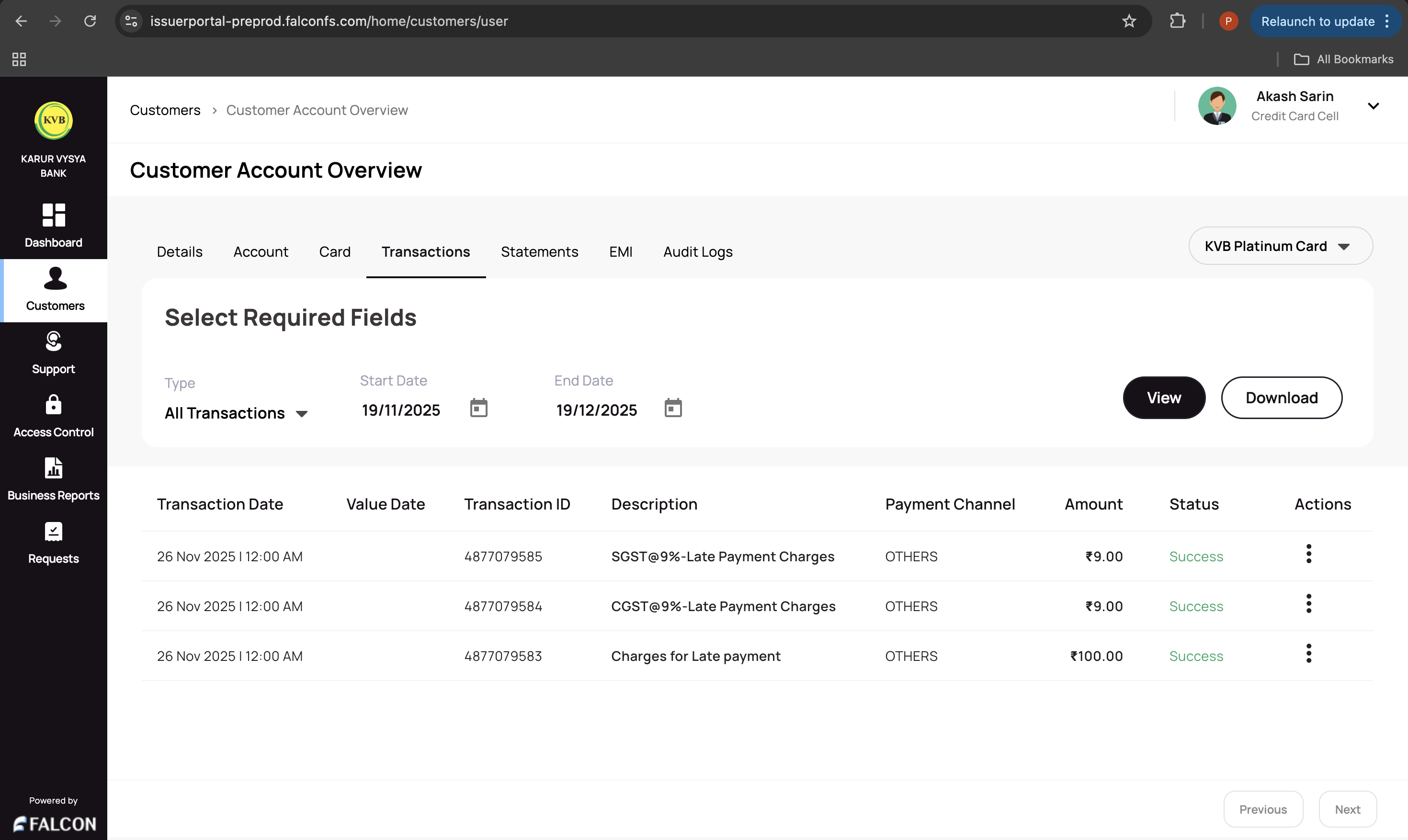
The transactions page contains a list of all, unbilled transactions and all authorisations for a customer’s card with the following details:
Transaction Date: Defines the date and time of a transaction.
Value Date: This field is applicable mostly for repayments — used when the bank needs to reflect a payment on the actual date it was made by the customer (via IMPS, cheque, or cash), even if the processing happened later. For such cases, the bank can manually select a backdated value date (up to the current day) to ensure accurate accounting.
Transaction ID: A unique system-generated identifier assigned to each transaction for tracking and reconciliation.
Payment Channel: Indicates the channel of the transaction.
Description: Indicates the description of a transaction.
Amount: The total value of the transaction, debit or credit.
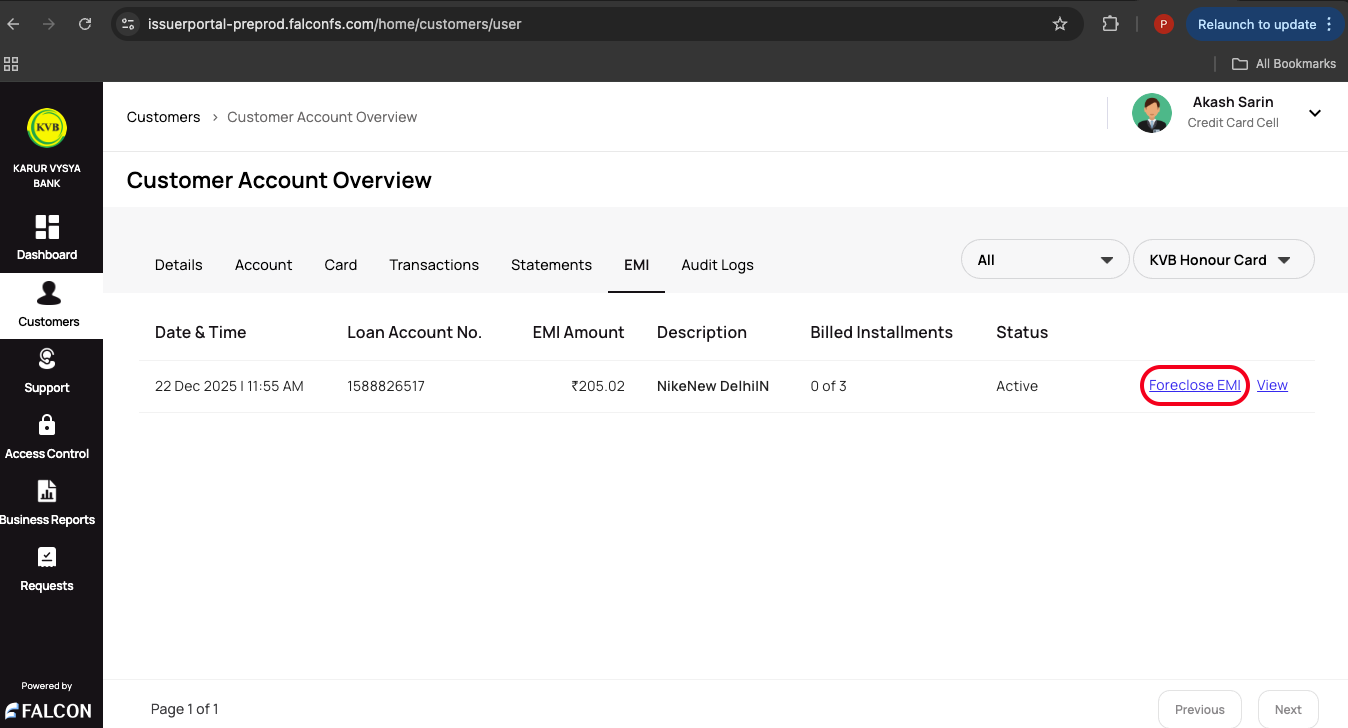
The EMI page is displayed only for retail customers and contains a list of all EMIs of a customer with the following details:
Date & Time: Date and time at which the EMI was created.
Loan Account No.: The loan account number.
EMI Amount: The EMI amount to be paid.
Description: The description of the EMI.
Billed Installments: The number of installments paid.
Status: The status of the EMI.
You can click on any required EMI to view its details.
An admin and support maker can perform the following actions in the EMI tab:
Foreclose EMI
⏹️ Foreclose EMI
This action is used when a customer wants to foreclose the EMI.
To foreclose the EMI:
Log in to the issuer dashboard using the role-based credentials.
If a user is:
An admin maker: Click the customer to pay the bill.
A support maker: Click the customer, select any two customer details to authenticate, and click Submit.
Go to the EMI tab and click Foreclose EMI against a particular EMI.
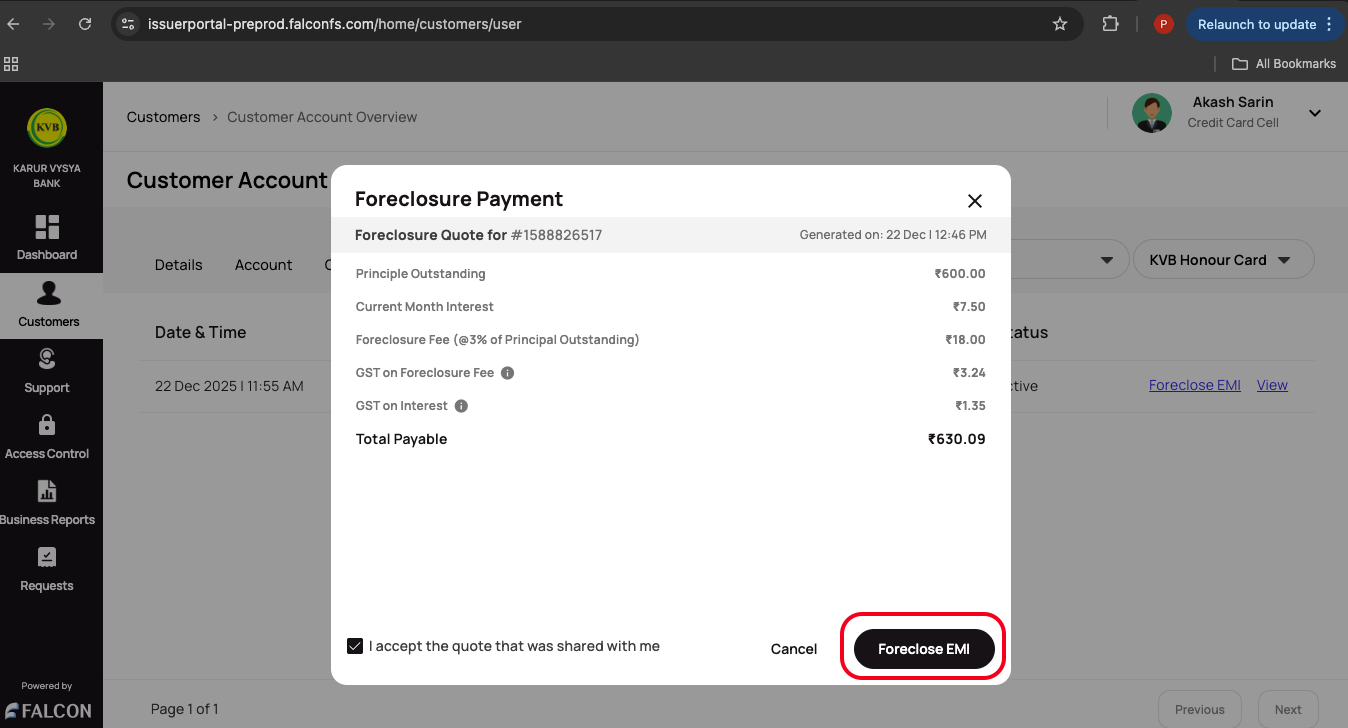
Check the foreclosure quote, select the accept quote check box to accept the quote in the Foreclosure Payment pop-up page, and click Foreclose EMI.
📜 Audit Logs
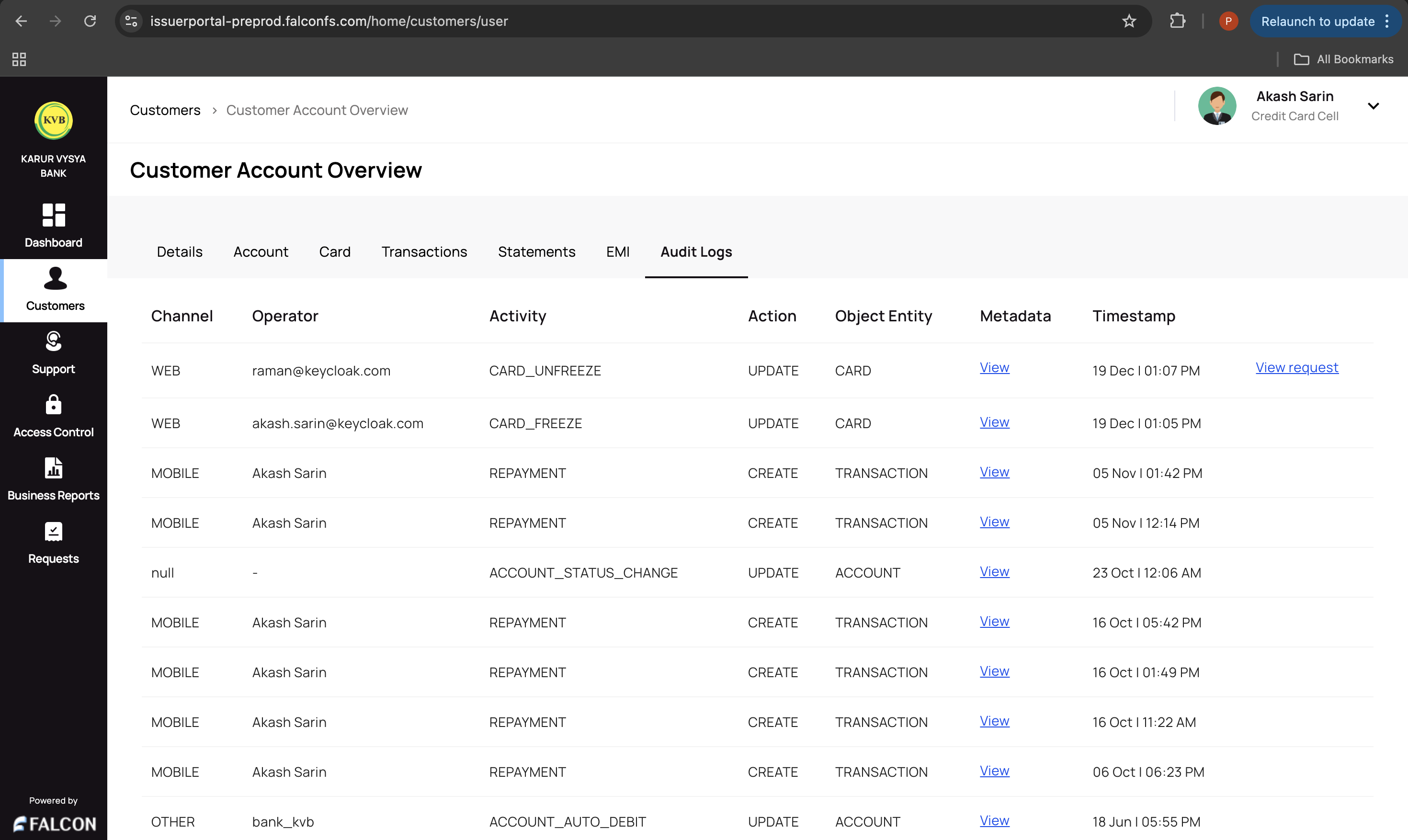
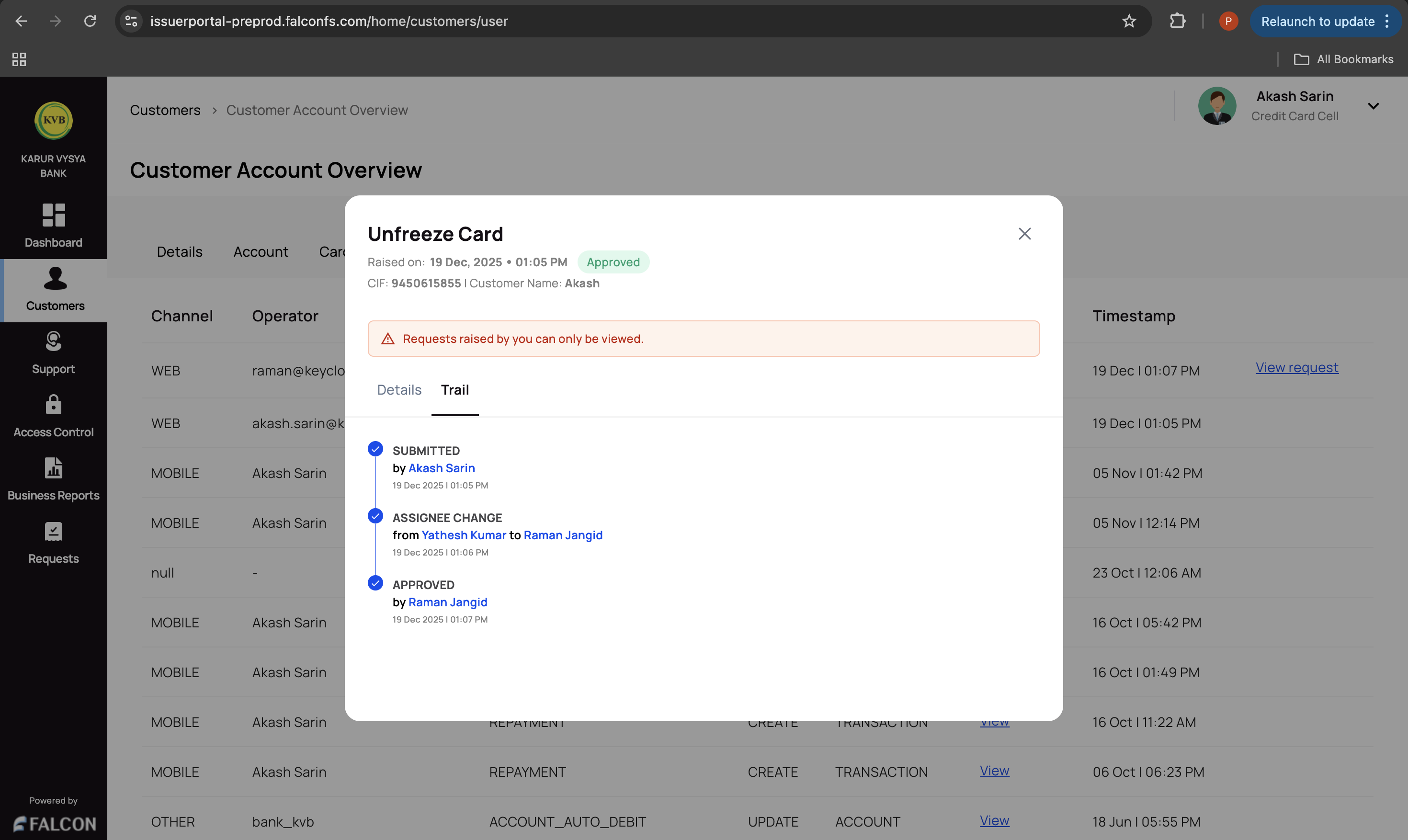
The audit logs tab contains a list of all the maker and checker audit trails for the actions performed by issuer portal users, with the following information.
Channel: Indicates the interface or source through which the action was performed.
Operator: The name or ID of the user (Maker, or Checker) who acted.
Activity: A brief description of the operation executed.
Action: Specifies the type of change made.
Object Entity: The functional area where the activity occurred, such as Account, Request, or Transaction.
Timestamp: The exact date and time when an activity or action was performed.
Metadata: Provides the metadata of the audit log.
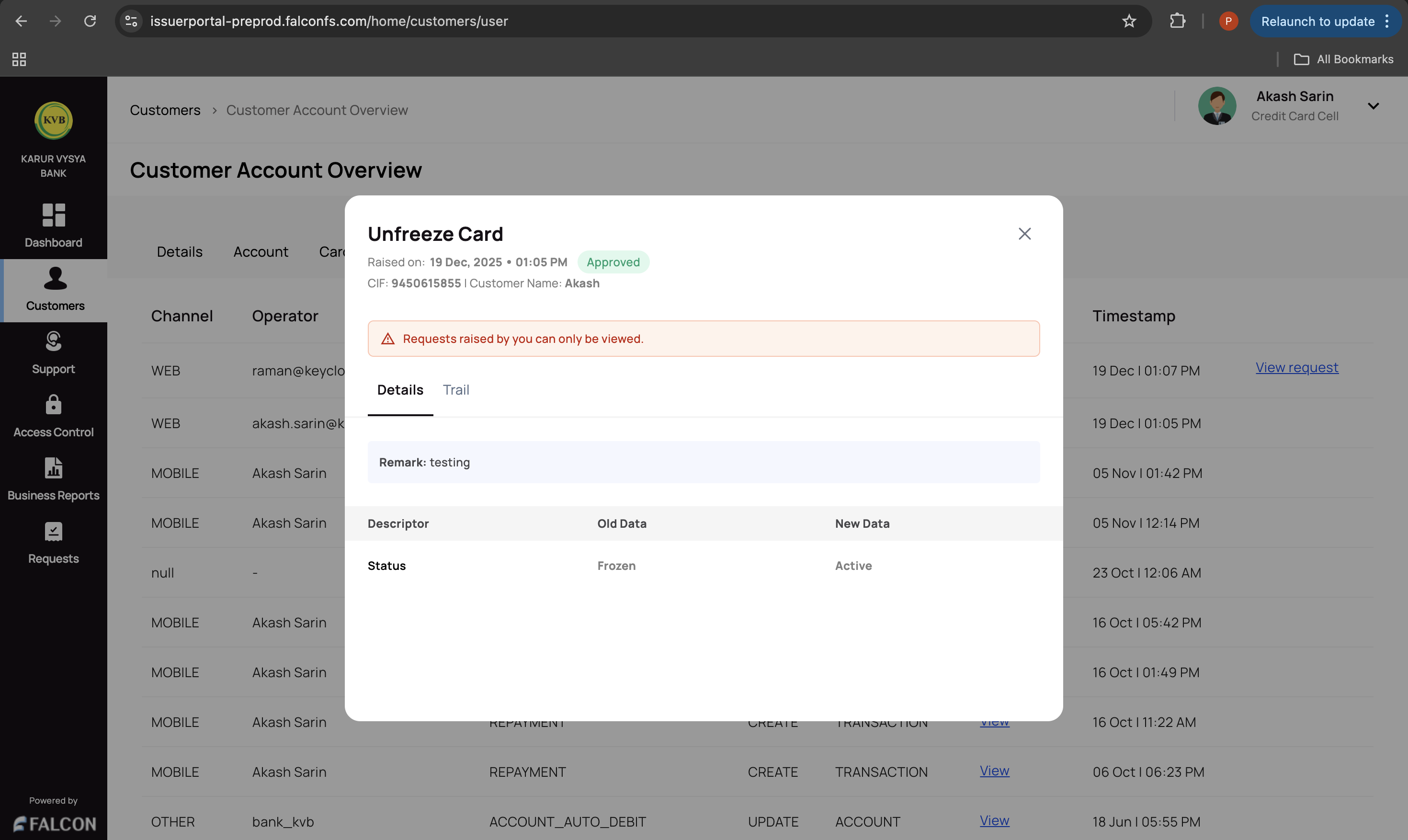
You can click View request against a log to view the trial details, as shown below.