
Card - Dashboard Actions
Know actions you can perform in the card tab.
An admin and support maker can perform the following actions from the Accounts sub-page:
- Freeze a Card
- Hotlist a Card
- Remove System Block
- Replace a Card
- Edit International/Domestic Spend Limits
❄️ Freeze a Card
This action is used to temporarily restrict card operations while retaining the customer’s data.
Handy Tips
Users can unfreeze a card from the same menu.
Example:
- A customer reports loss or theft of their card or any confidential details, which could be used for fraudulent transactions.
- A bank freezes the card to temporarily suspend transactions and perform investigations in parallel.
- Post investigation, the bank may unfreeze the card or close the credit card account.
Once the card is frozen. Purchase transactions are blocked until the card is unfrozen. Once the issue is resolved, a user (with any role-based access) can unfreeze the card.
To freeze a card:
-
Log in to the issuer dashboard using the role-based credentials.
-
If a user is:
- An admin maker: Click the customer to pay the bill.
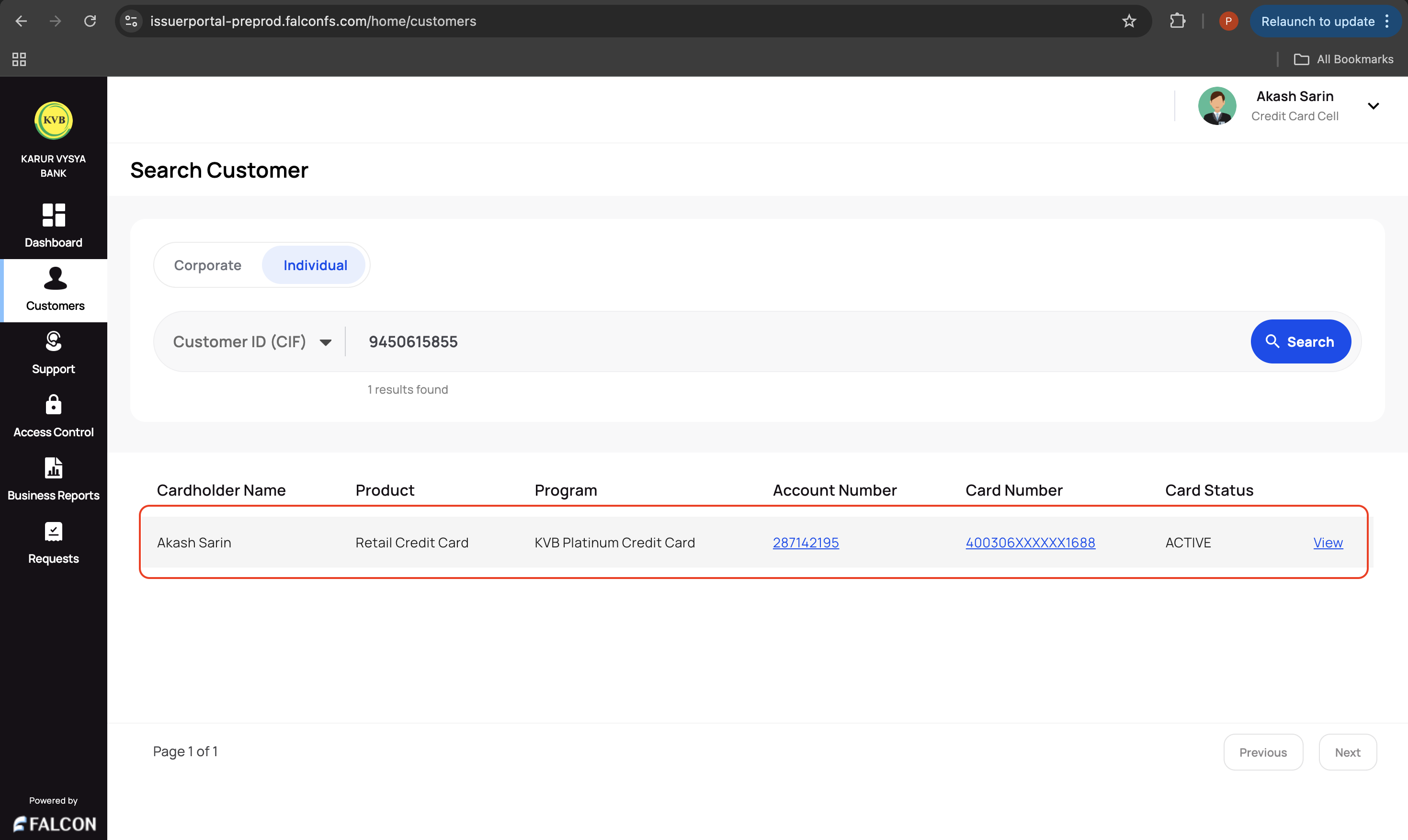
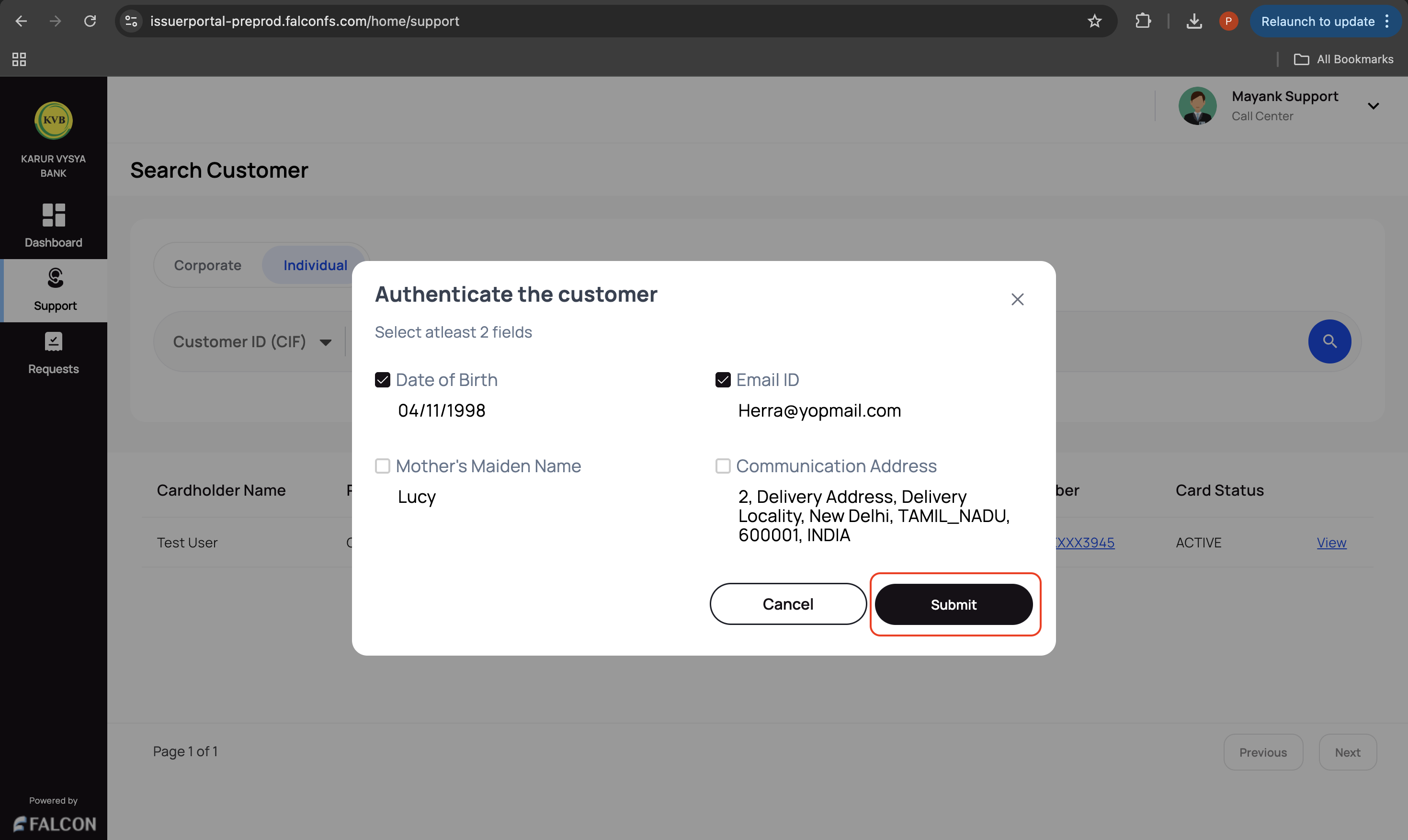
- A support maker: Click the customer, select any two customer details to authenticate, and click Submit.
-
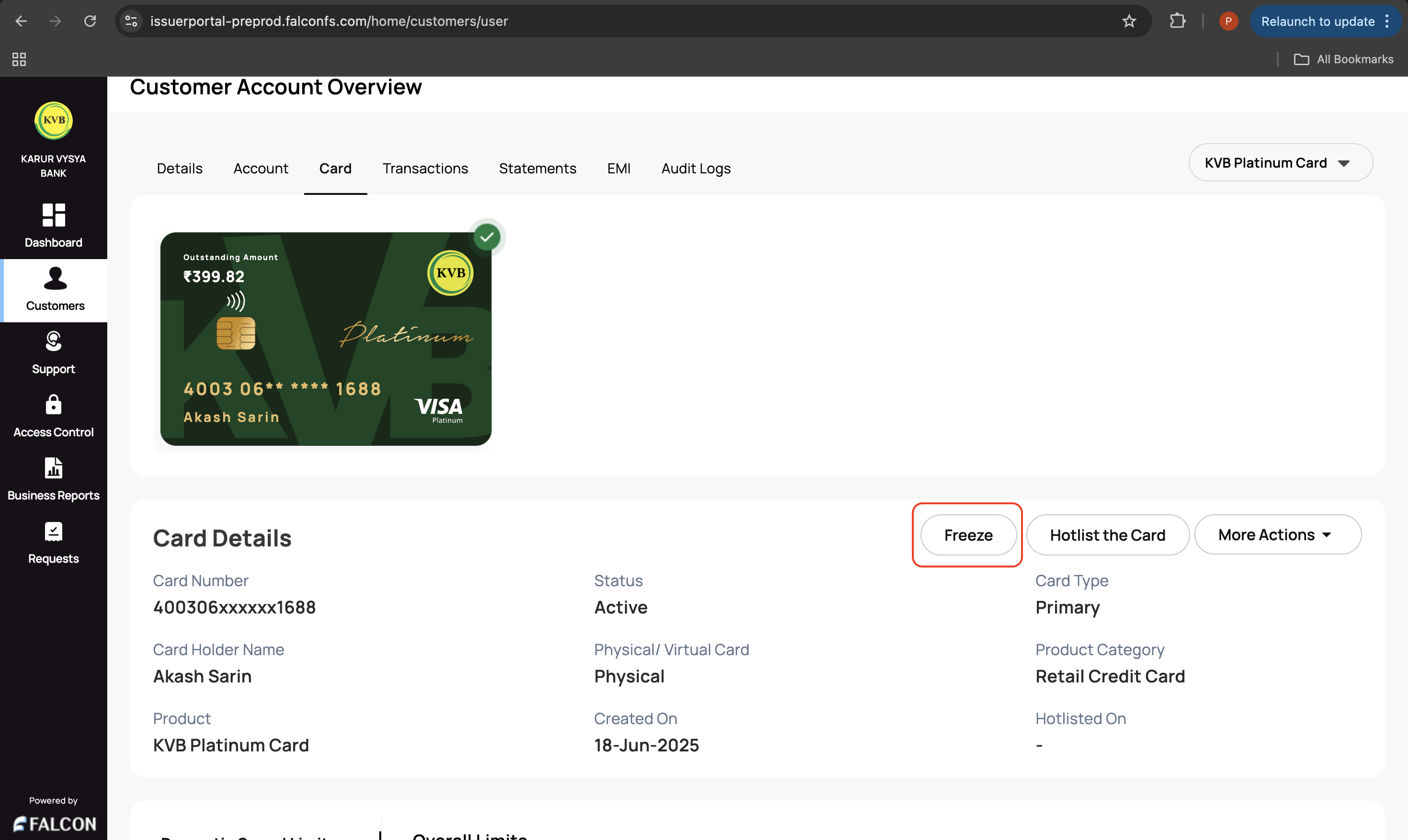
Go to the Card tab and click Freeze displayed in the top-right corner of the Card Details section.
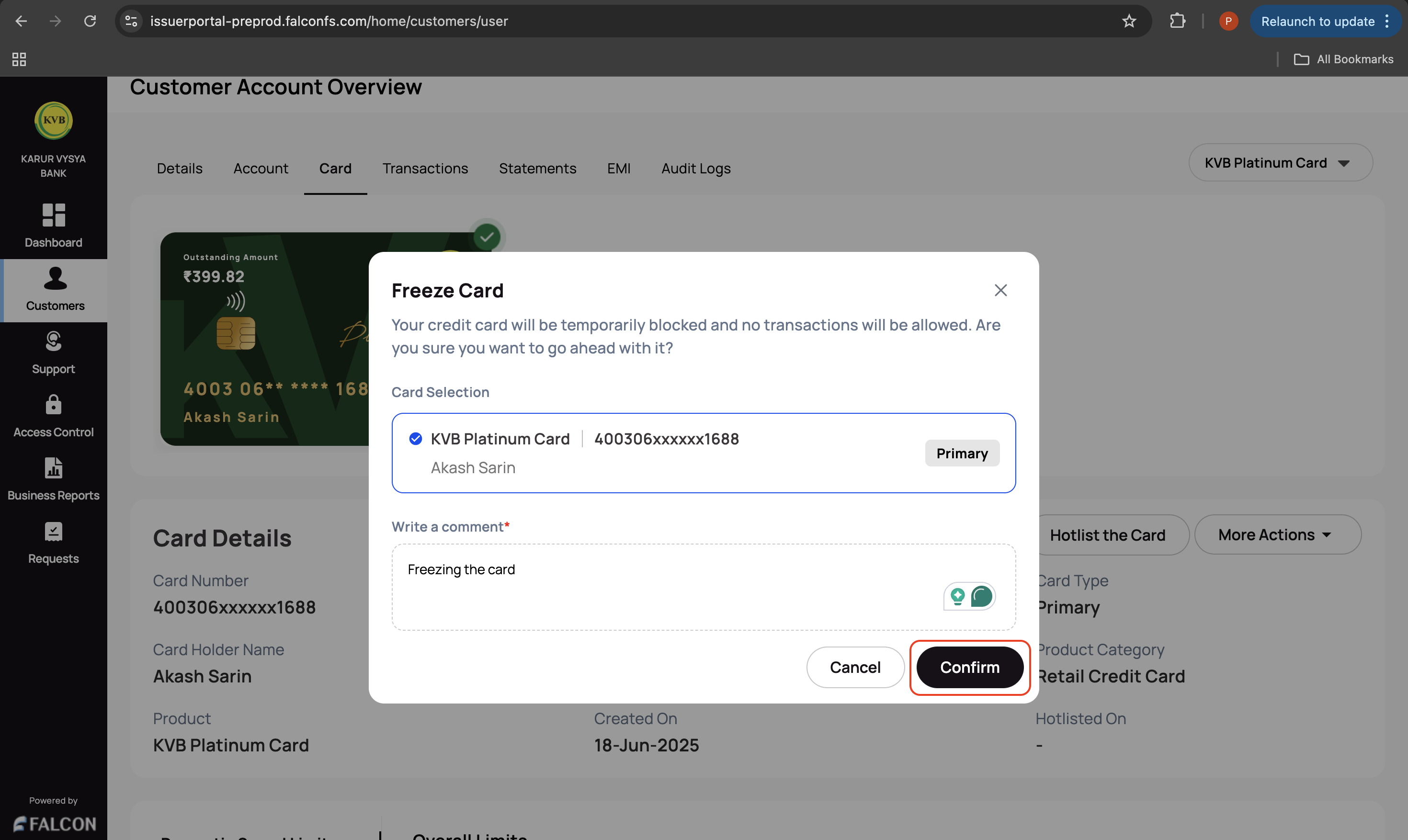
- Provide the following information in the Freeze Card pop-up page and click Confirm.
- Select the card you want to freeze.
- Enter the comments. This is mandatory.
You have successfully raised the freeze card request. You can check the status of the request in the Requests page.
🚨 Hotlist a Card
This action is used to permanently block a card from further usage.
To hotlist a card:
-
Log in to the issuer dashboard using the role-based credentials.
-
If a user is:
- An admin maker: Click the customer to pay the bill.
- A support maker: Click the customer, select any two customer details to authenticate, and click Submit.
-
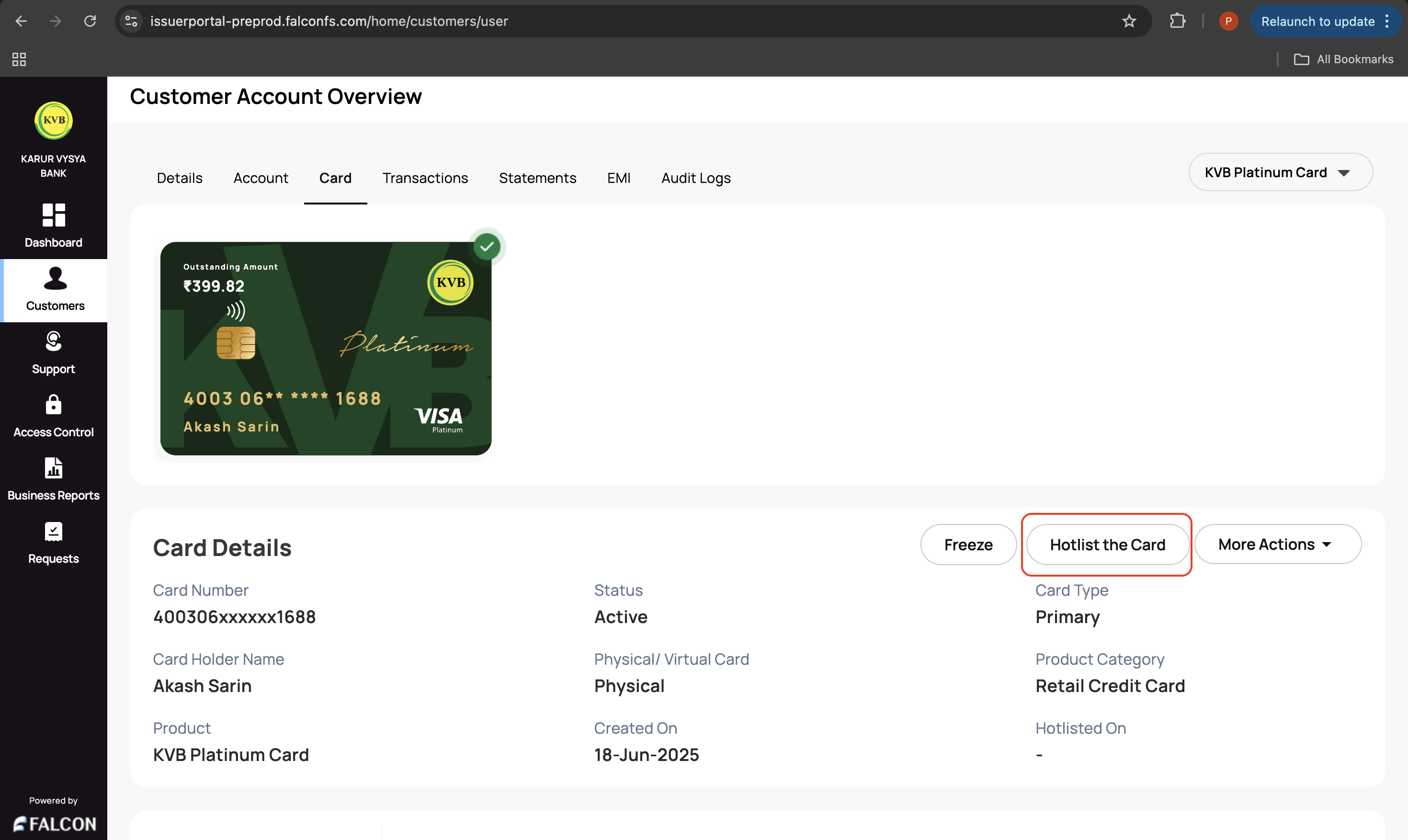
Go to the Card tab and click Hotlist the Card displayed in the top-right corner of the Card Details section.
-
Provide the following information in the Confirm card hotlisting? pop-up page and click Confirm.
- Select the card you want to freeze.
- Select the reason from the Reason for hotlisting the card drop-down list.
- Enter the comments. This is mandatory.
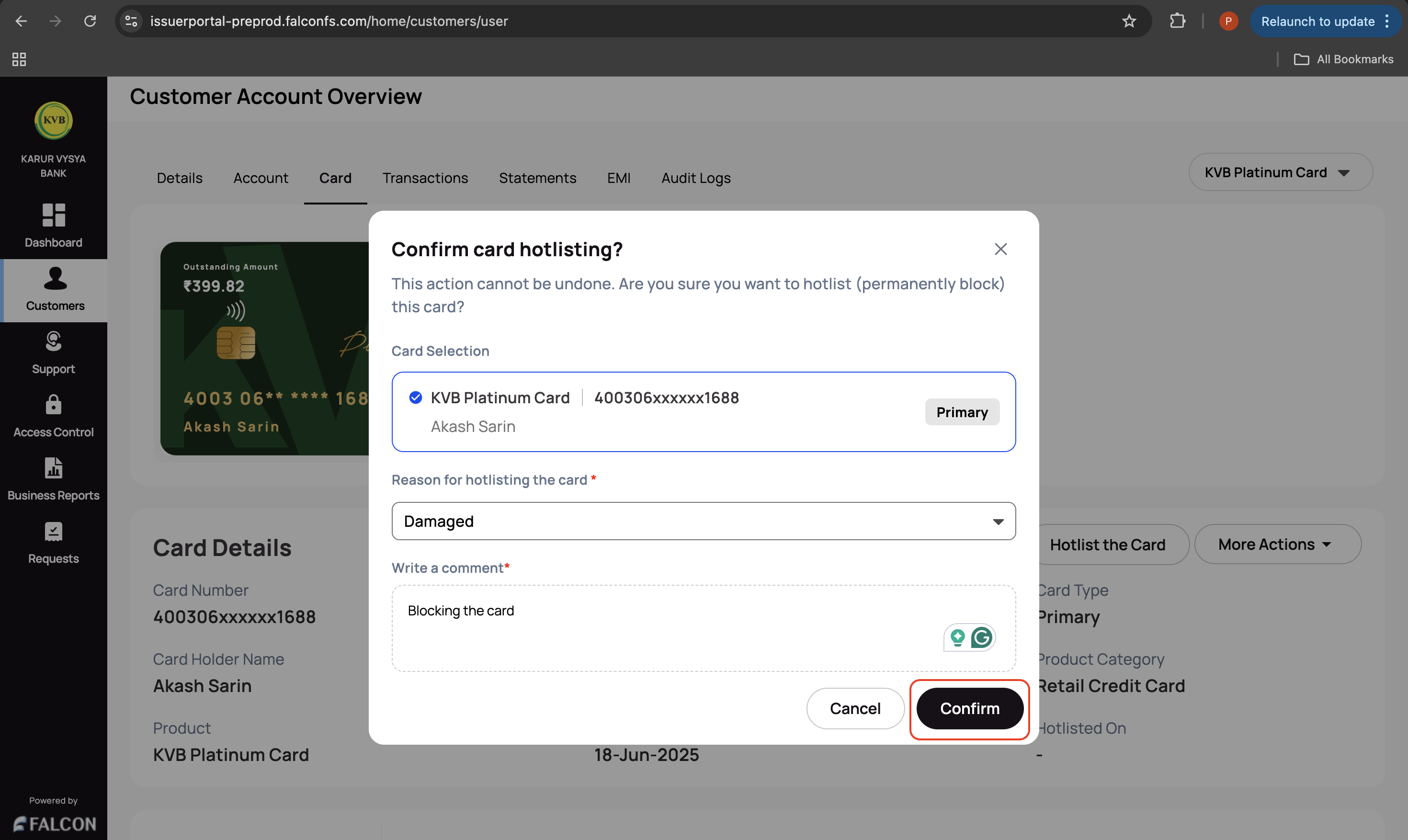
You have successfully raised the card hotlisting request. You can check the status of the request in the Requests page.
🔓 Remove the System Block
This action is used to unblock the card.
To remove the system block:
-
Log in to the issuer dashboard using the role-based credentials.
-
If a user is:
- An admin maker: Click the customer to pay the bill.
- A support maker: Click the customer, select any two customer details to authenticate, and click Submit.
-
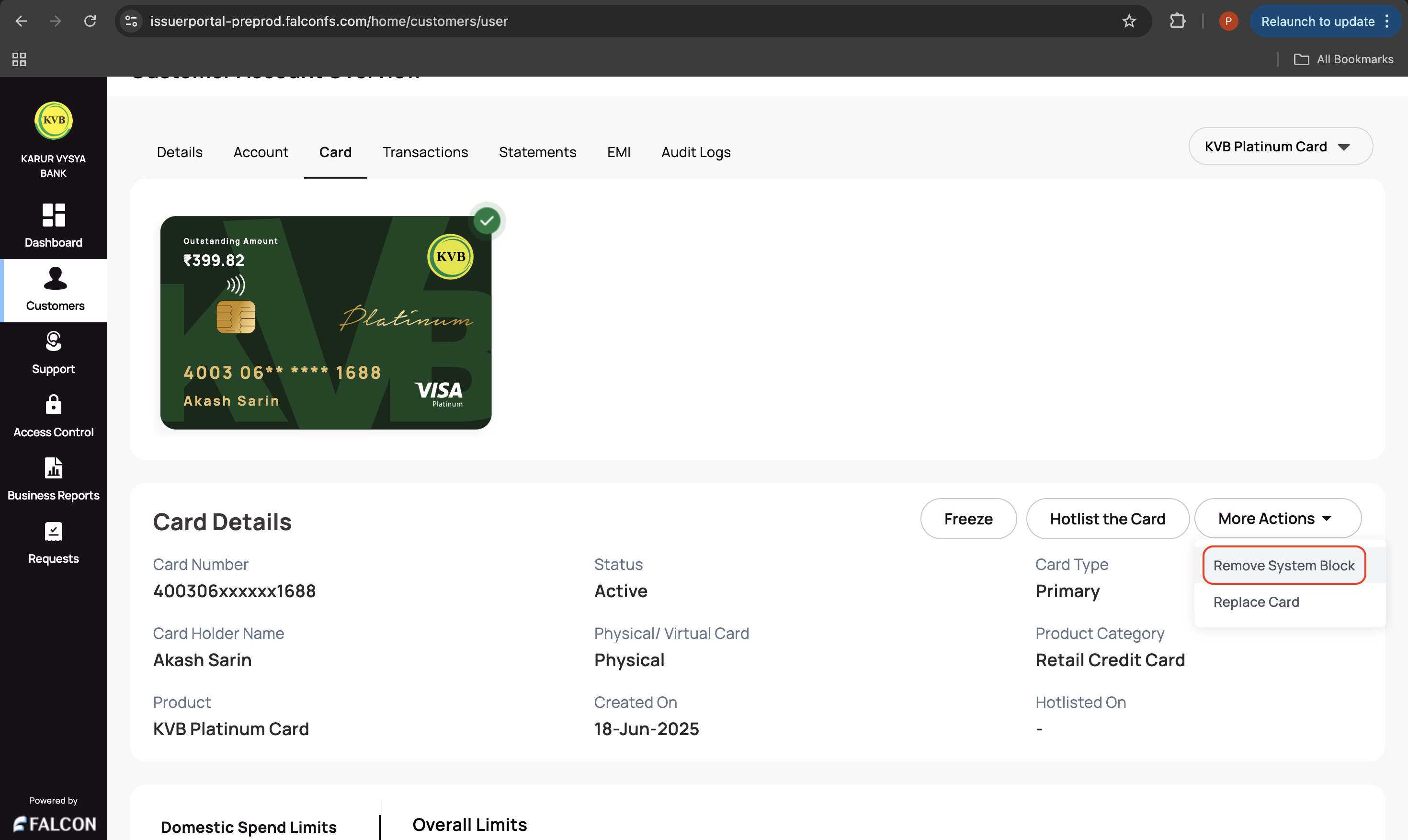
Go to the Card tab, click More Actions displayed in the top-right corner of the Card Details section, and click Remove System Block.
- Write a comment on the Unblock Card? pop-up page and click Unblock.
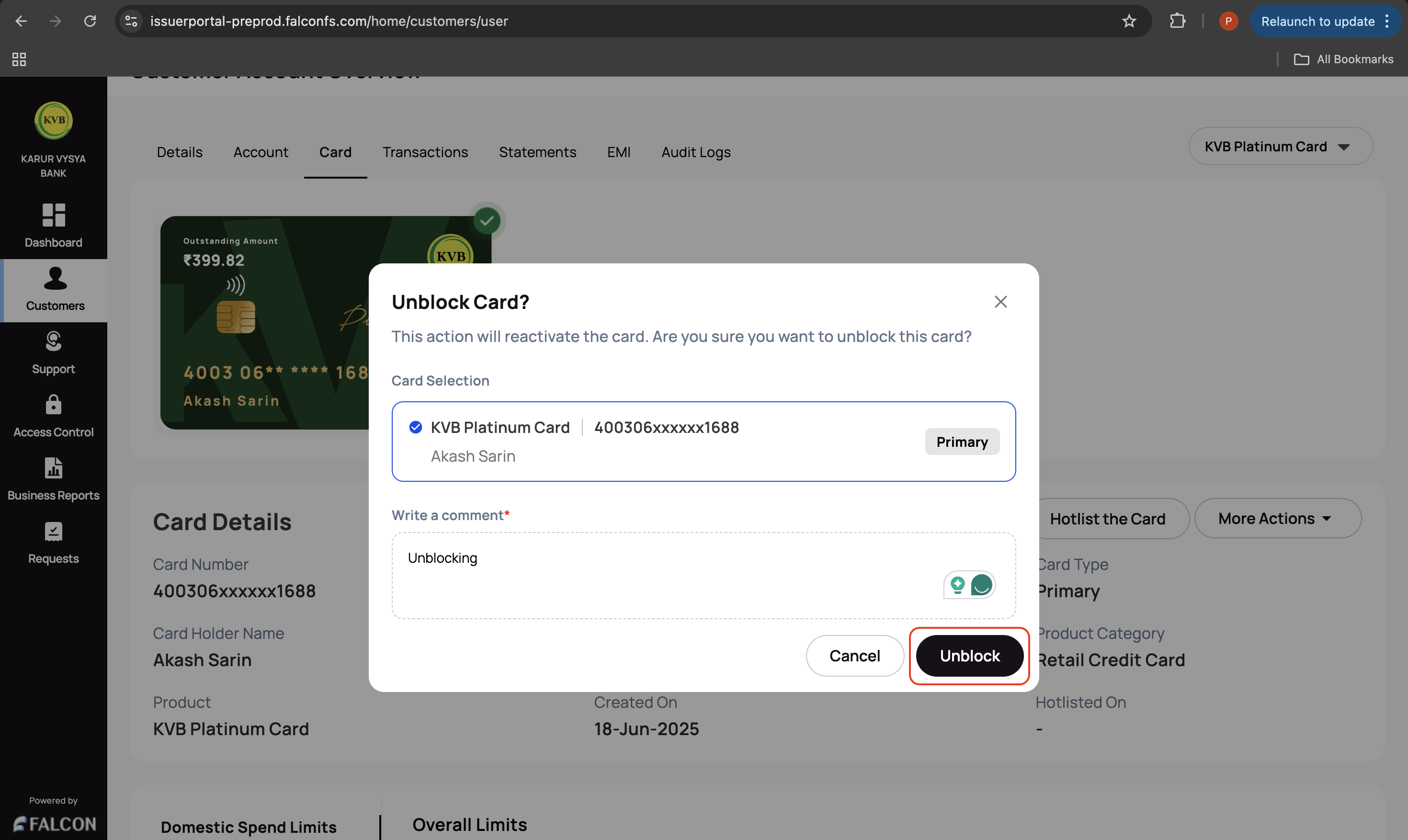
You have successfully raised the card unblocking request. You can check the status of the request in the Requests page.
♻️ Replace a Card
This action is used to replace the card.
To replace a card:
-
Log in to the issuer dashboard using the role-based credentials.
-
If a user is:
- An admin maker: Click the customer to pay the bill.
- A support maker: Click the customer, select any two customer details to authenticate, and click Submit.
-
Go to the Card tab, click More Actions displayed in the top-right corner of the Card Details section, and click Replace Card.
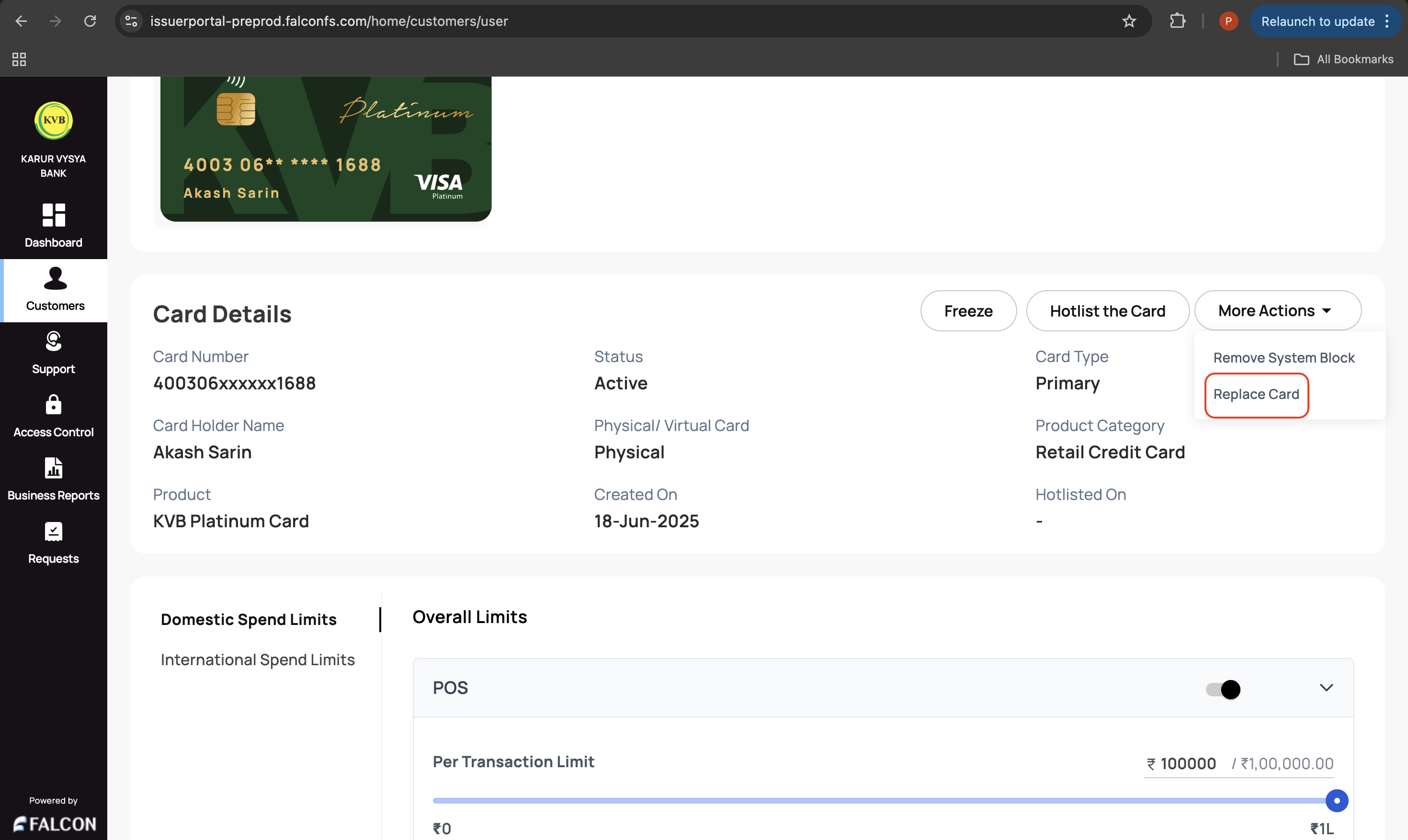
- Write a comment on the Replace Card? pop-up page and click Confrim.
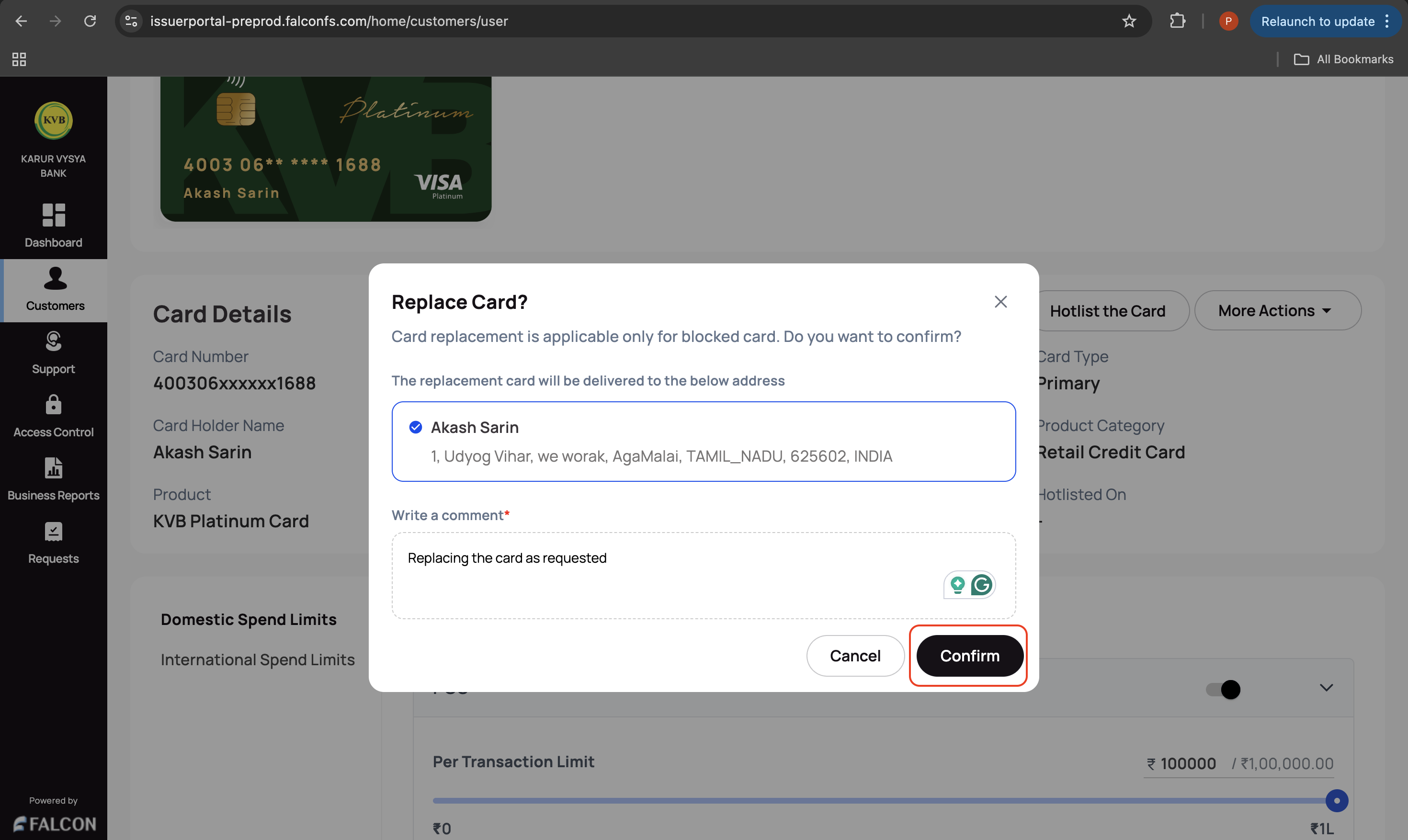
You have successfully raised the card replacement request. You can check the status of the request in the Requests page.
🌍 Update Domestic and International Spend Limits
This action is used to update the domestic and international spend limit. You can update the limits of the following:
- POS
- Online Transactions
- Contactless Transactions
- ATM Withdrawal
To update domestic and international spend limits:
-
Log in to the issuer dashboard using the role-based credentials.
-
If a user is:
- An admin maker: Click the customer to pay the bill.
- A support maker: Click the customer, select any two customer details to authenticate, and click Submit.
-
Go to the Card tab and click Domestic Spend Limits or International Spend Limits, depending on your requirement.
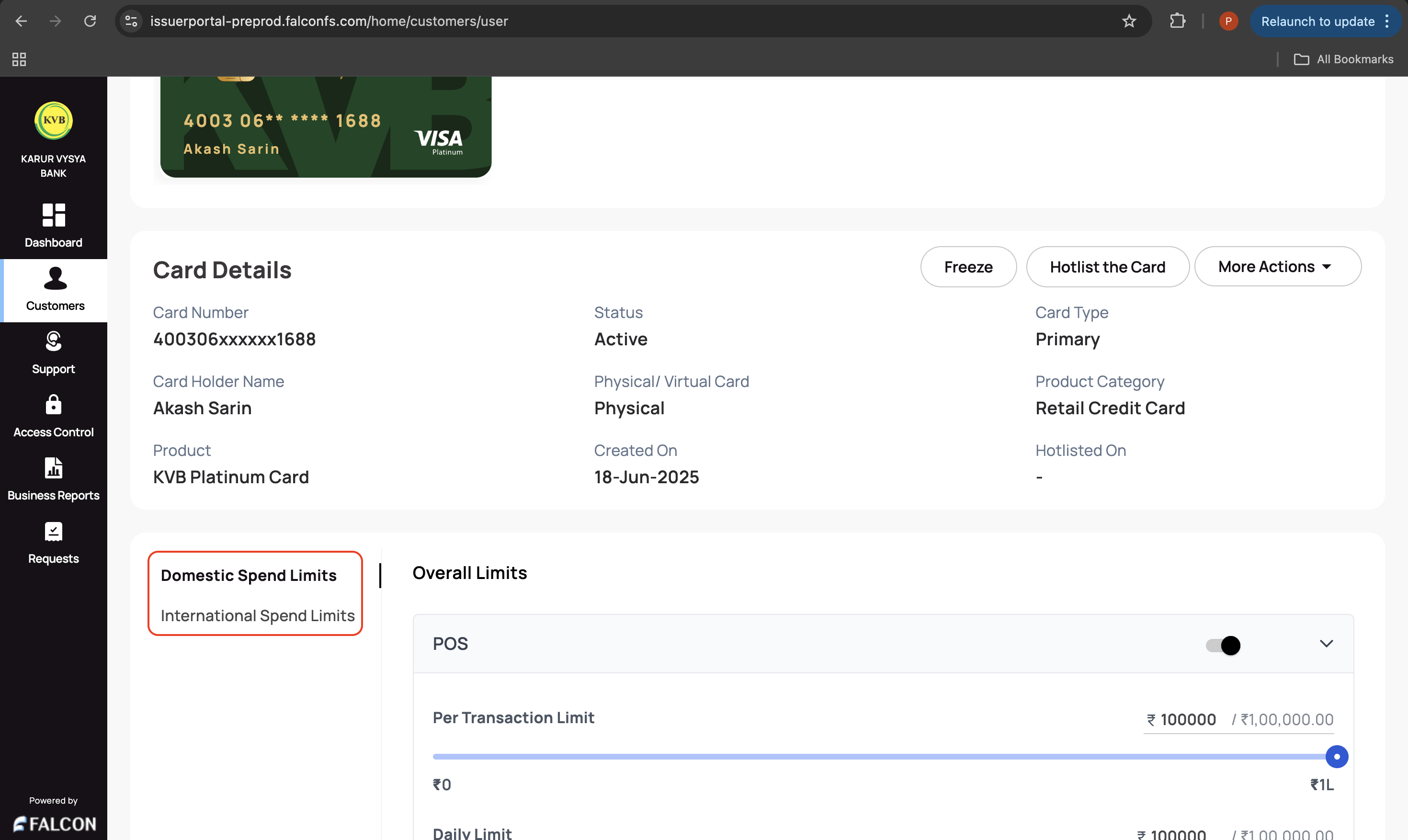
- Expand the following sections depending on your requirement and use the slider to adjust spending limits. You can also enable/disable the transaction type using the radio buttons.
- POS
- Online Transactions
- Contactless Transactions
- ATM Withdrawal
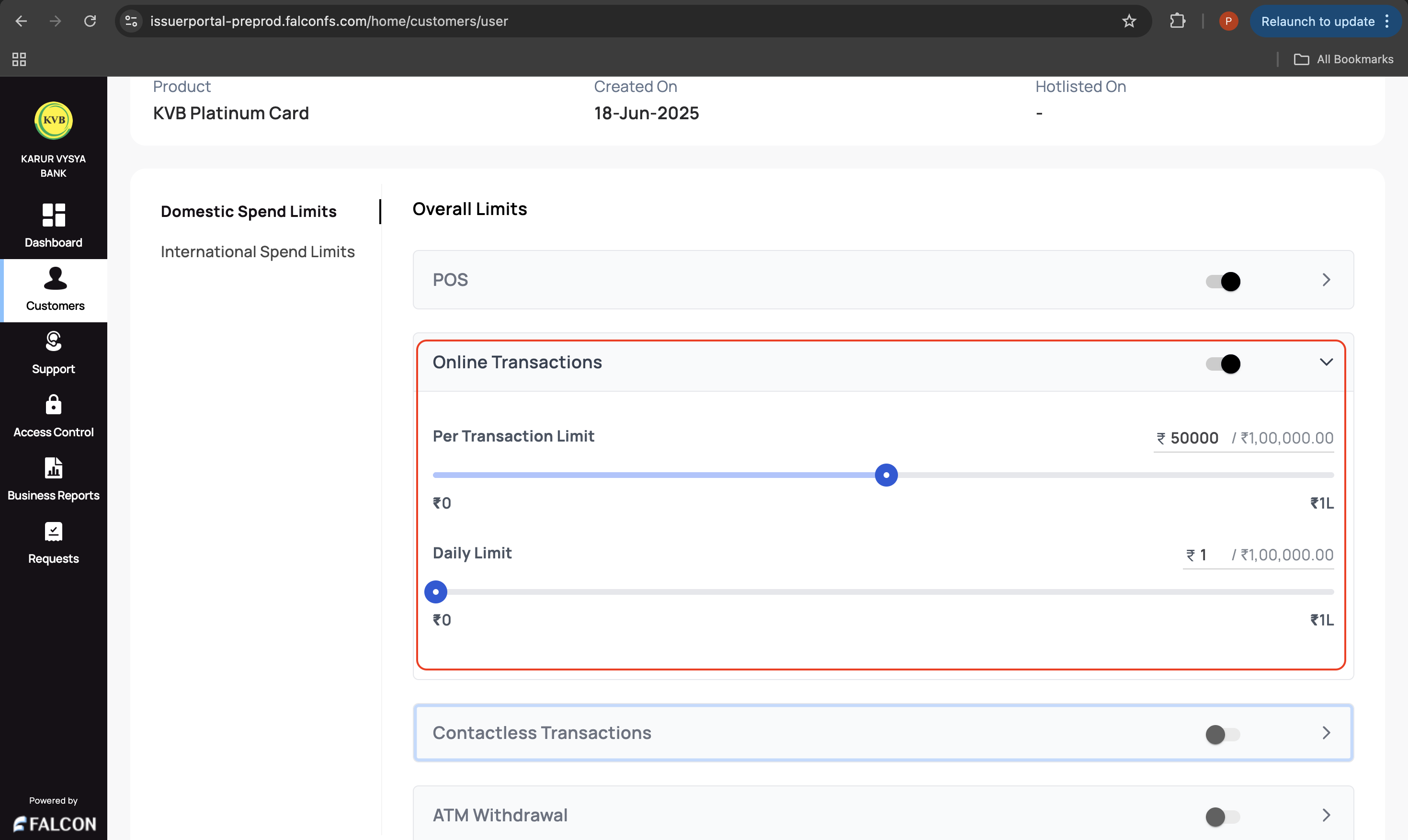
- Click Save to save the settings.
You have successfully raised the spend limit update request. You can check the status of the request in the Requests page.
Updated 9 months ago
Related Information
Refer to the following pages for any additional information.